Configuring Platform Single Sign-On (PSSO)
To be eligible for PSSO the following must be true:
- The Mac is purchased by UiO and enrolled in the management solution (Workspace One)
- The Mac must be updated with the latest version of macOS
- As of spring 2026 PSSO is not deployed everywhere, but if you want access reach out and we will add your device manually.
- Apple Silicon with macOS 26+ (Intel platform not supported)
Begin Configuration
This is usually performed initially by clicking on the notification in the upper right corner of your screen:
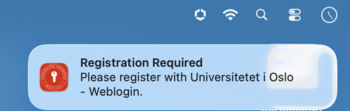
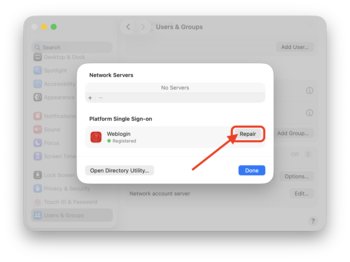
Or, it can be performed via "System Settings", "Users & Groups" and find the "Network account server" then click the corresponding "Edit..." button.

In the smaller window find "Weblogin" and click on the button labeled "Repair".
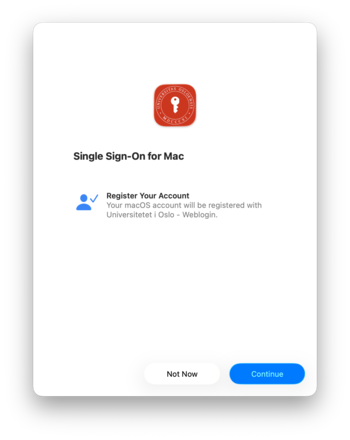
PSSO Window appears, "Single Sign-On for Mac" to register your account click "Continue".
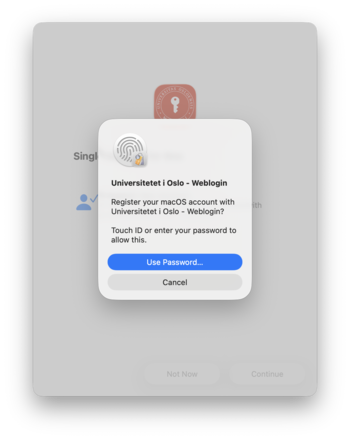
A small window appears on top asking if you want to register your macOS account with Weblogin. Depending on the capabilities of your device you can use password, or you can use fingerprint (Touch ID).
In the lower left corner it will say "Registering service" for a few moments, after which a new window will appear for authenticating to UiOs Weblogin service.
NB: This window is often smaller than the contents you need to interact with so if you do not see the "Login" button you probably just need to scroll down.
Enter only your uio-username (without @uio.no) and password, also tick the "Remember me" box and click the black "Sign In" button when you feel lucky (or done).

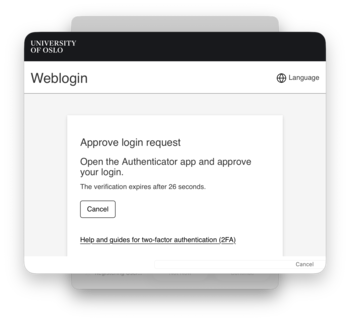
Weblogin proceeds with two-factor authentication (2FA) and asks you to approve the login request (normally using the Authenticator app on your smartphone).
If you are still on the Happy Path, you will see a window with the joyful message that registration is complete and you can (again) enjoy life, Congratulations!
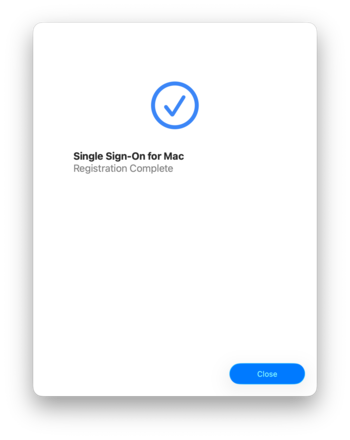
Registration Complete - now what?
After registration you should be able to use any application that uses UiO Weblogin for authentication (f.ex. Vortex, RT, Mattermost, Outlook, Zoom), without authenticating with username/password/2FA. Your Mac will authenticate you automagically!
If you have not authenticated on your Mac - ie not unlocked your Mac in less than eight hours, or if an application requires fresh authentication, you will be asked for fingerprint, or password to proceed.
We believe the Apple Mail app seems to force already authenticated users to re-authenticate.
How to disable PSSO?
If you go to "Applications" folder you will find the "Weblogin SSO" Application. It has one feature (ok, two if you count the About menu option that displays version number) to easily toggle the SSO Extension on or off.
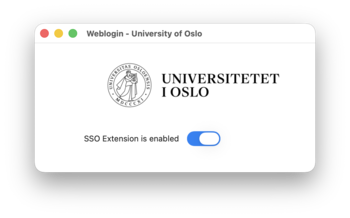
Currently only the Safari browser is supported by PSSO. Applications that use Apple's WebKit Framework and authenticate against Weblogin often work well with the extension.
Troubleshooting and Questions
If you belong to IT-services you probably have access to Mattermost, and there we have a chat channel, #psso please make contact there.
For everyone else, and for creating support tickets please use the usual support channel via IT-help.
If you have problems with PSSO in Safari it can help to delete data (Click on "Privacy", and "Manage Website Data..." then search for "uio.no")
If the buttons for Repair or "Authenticate" does not work (clicking register, but nothing happens) verify that you have a working internet connection with connectivity to uio.no and/or that your Mac still meets the minimum requirements for the PSSO Extension (verify that you have the latest version of macOS and meet all Mobile Device Management requirements)