Project recovery
NVivo Windows automatically creates "project recovery" files (.nvb) as backups. If a standard .nvp project file will not open, you can run the Project Recovery Wizard.
See how you can configure a recovery file for your project:
NOTE! .nvb (recovery) files cannot be opened directly in NVivo—they can only be used for project restoration through the Project Recovery Wizard.
See important routines to prevent losing data:
Project Recovery Wizard
NOTE! Always make sure you are running only one instance of NVivo.
1. File → 2. Help → 3. Restore Project → 4.
→ Select the project file you want to recover and
→ Select the recovery file you want to restore with.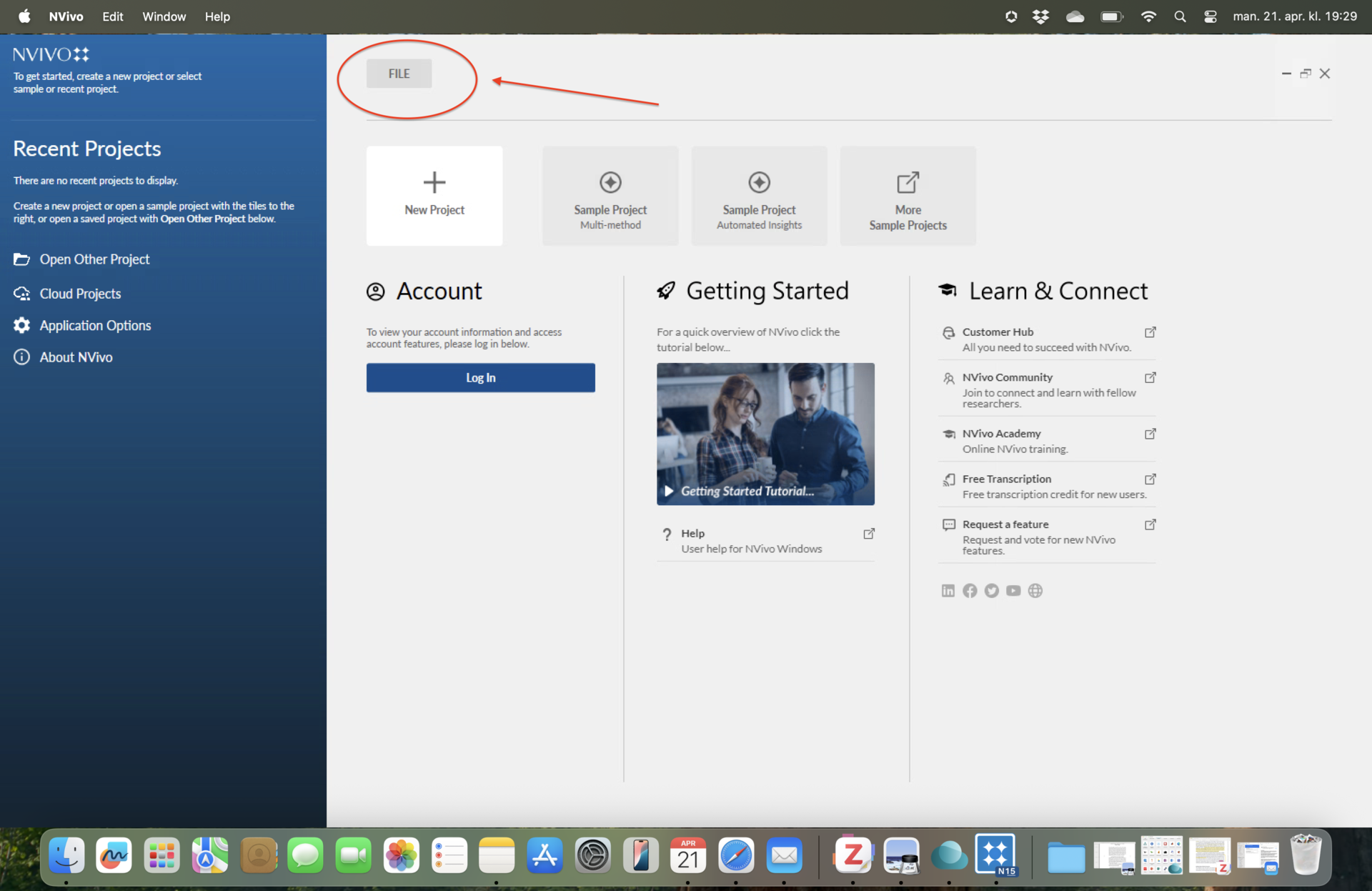


Manual backups
If you want backup files that you can open at any time, create a copy of the file using your Windows File Explorer.
- Save and close the current NVivo project that you want to copy.
- Close the NVivo application.
- Navigate to the location where the project is stored using Windows File Explorer. right-click on the project file and select Copy.
- Go to the location (folder) where you want to keep your copy, right-click and select Paste. Rename the copied file.
Restore by merging copy
If a project file is corrupted or has performance issues, it can sometimes be repaired by creating a new, empty project and importing the problem project into it. See instructions here: