This guide shows you, step by step, how to use the Share function to share a document from Microsoft Office (Word, Excel, or PowerPoint).
Sharing a document using the Share function on Windows or in the browser
NOTE: If you want to do this from a Mac, you must open the document in the browser (online version of the program) before you can follow this guide.
- Open the document you want to share. If the file contains red (confidential) information, the sensitivity label Red (internal) or Red (external) must be active before you share the document.
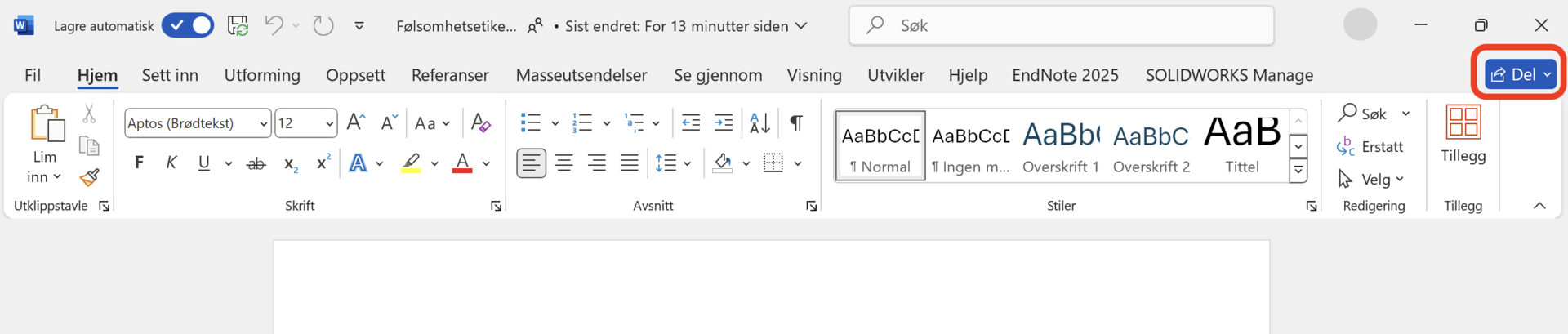
Click the Share button and then click Share... again.
Enter the email of the person you want to share the document with in the email field and a message to the invitee in the message field (optional).

- Share the document with the invitees by clicking Send.
Setting an expiration date on a shared document
If you are sharing the document with someone outside UiO, it is recommended to set an expiration date for access. This is especially important if the information is confidential and marked with the sensitivity label Red (external).
How to set an expiration date:
Go to link settings by clicking the gear icon in the sharing dialog.

Set an expiration date under More settings.

Confirm the expiration date by clicking Apply.
Call us
Opening hours are weekdays from 08:30 to 17:00 and Saturdays from 10:00 to 15:00.
Phone number: 22 84 00 04
Book a Zoom meeting
Students and employees can book a Zoom meeting with UiO Helpdesk. Available hours are Tuesday to Thursday between 11:00 and 13:00.
Book a video call