Subscription and Subscriber
The core admin must create a subscription that defines what it entails, along with the standard price and period. Once the subscription is created, it can be purchased by the user, but this must be done by the core admin by adding users as subscribers to the subscription.
Create a Subscription

- Click Billing in the navigation menu on the left, and then on Subscriptions in the submenu.
- Click on the +Add New Subscription button at the top right of the page.
- You will see a new page where you can fill in information about the subscription.
 Please note the following:
- SUBSCRIPTION PERIOD and SUBSCRIPTION COST: These values will appear as default when adding subscribers. However, they can be manually adjusted for each subscriber.
- ENTIRE CORE (checkbox): If this is checked, everything in the core is included regardless of Fee Type. (Note! Due to a bug as of August 5th 2024, checking ENTIRE CORE does not hide the REQUEST SERVICES field. However, it is not necessary to add service types manually.)
- ONLINE SERVICES, OFFLINE SERVICES, REQUEST SERVICES: If you did not select ENTIRE CORE, you must select which services are included in the subscription.
Add Subscribers
Regular users cannot purchase a subscription themselves. Only the core admin can add a user as a subscriber to a subscription.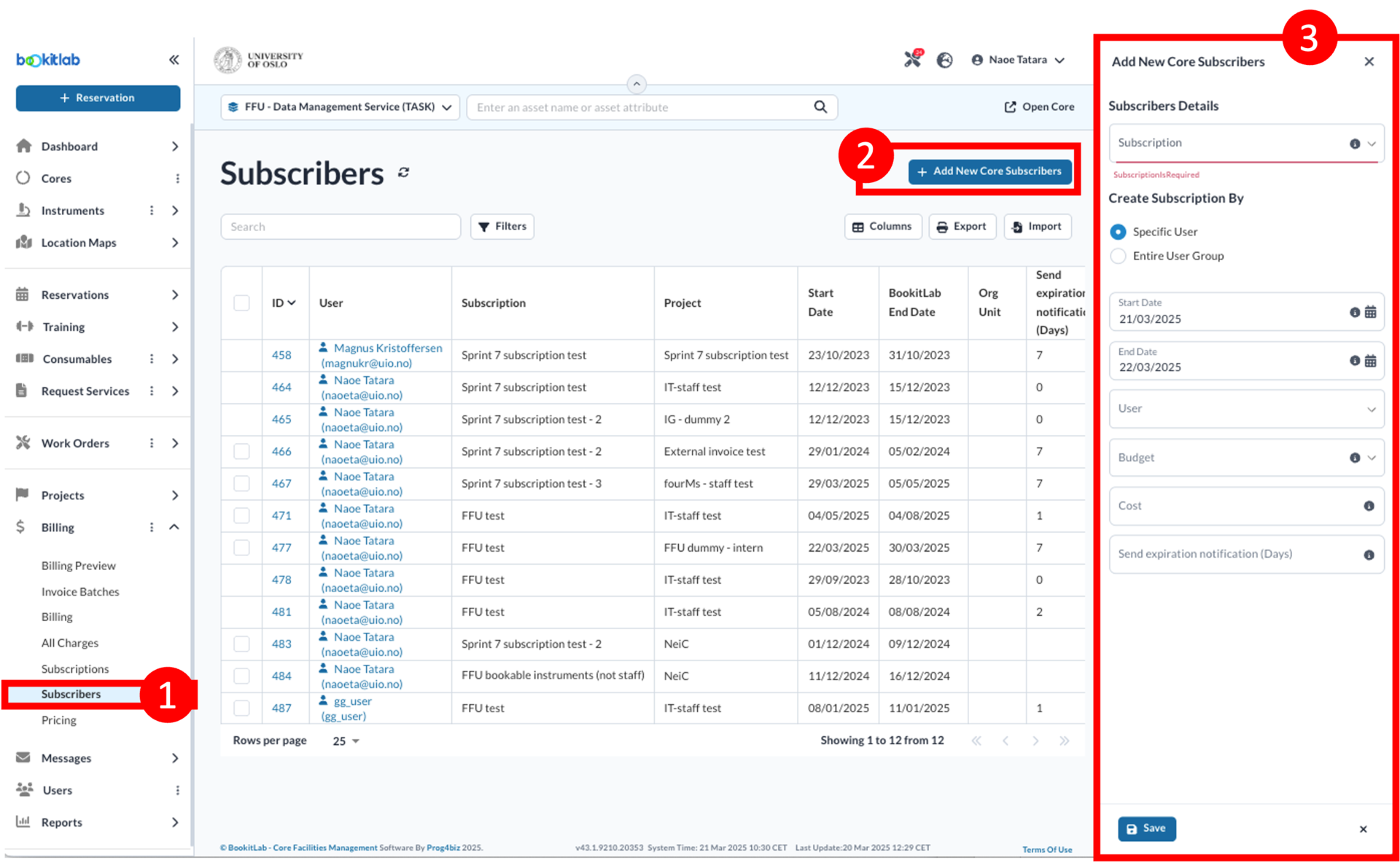
- Click Billing in the navigation menu and then Subscribers in the submenu.
- Click the + Add New Core Subscribers button at the top right of the page.
- You will see a side panel on the right-hand side where you can fill in information about the subscription purchase.
- The valid period and cost of the subscription can be edited manually here.
- If a project to be charged does not show up in the list, it is most likely because the start/end date of this subscriber is outside its valid period (or user's specific).
- Click Save button at the bottom of the side panel.
Important Notes on Subscriptions
- A subscription purchase may take some time before it is registered by the system. You must ensure that the user can see the subscription purchase on the All Charges page (Click Billing and select it in the submenu) before creating a new booking, otherwise the booking may be charged.
- When Request Services are included in the subscription, the cost is charged on the day the service is marked as completed. This means that if a service is completed after the subscription end date, the cost of that service will not be covered by the subscription even if it was ordered within the valid period; thus, the user will be charged for the service according to the pricing rules.
Frequently Asked Questions about Subscriptions
Can a user switch to a subscription to cover costs for previous bookings?
Yes, it is possible, but it must be done before the previous bookings are invoiced.
- The core admin adds a subscriber with a period covering the dates for the previous bookings.
- Then he/she needs to recalculate the estimated costs for the bookings:
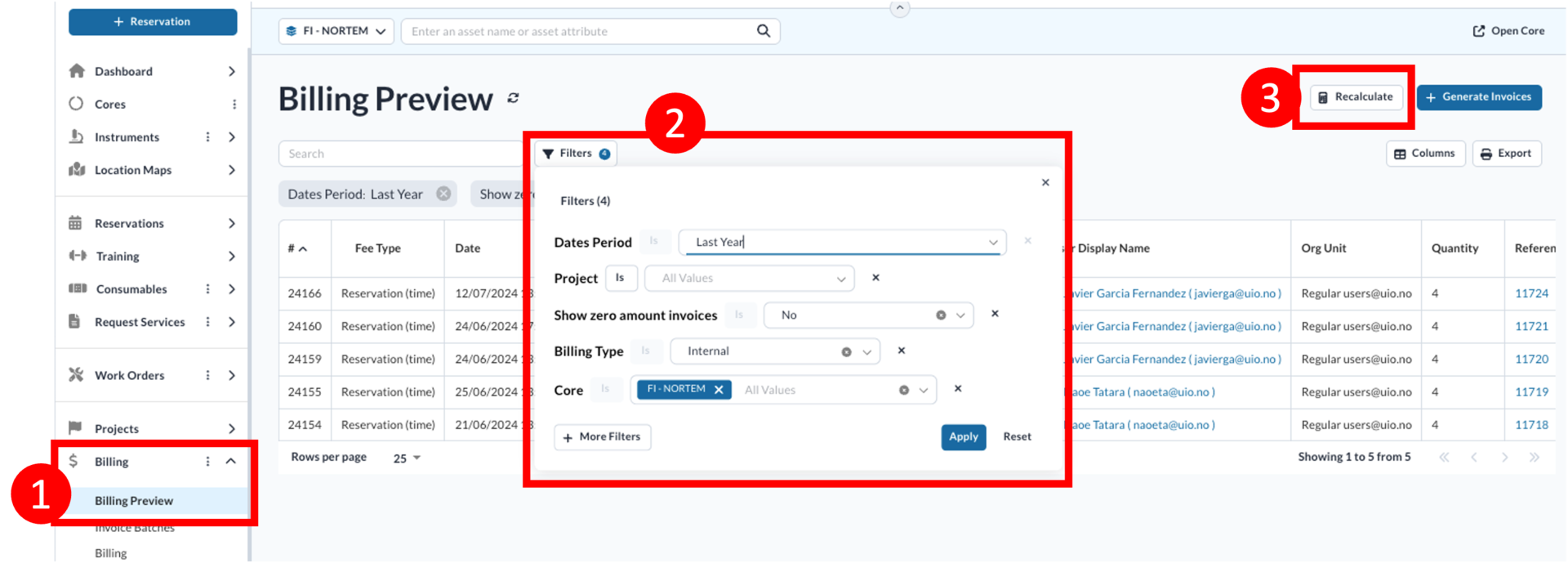
- Click Billing in the navigation menu and then Billing Preview.
- Use filters to bring up relevant reservations or orders.
- Click on the Recalculate button.
Please note that the project amount and hard limit (or the user's individual User Limit) must be set high enough to cover the estimated costs for the already completed bookings in addition to the subscription price upfront. The project amount can be set back to a lower value later.
Can assisted reservations or training sessions be charged separately?
When an instrument is added to a subscription, all costs regardless of fee type (Fee Type set on Instrument Price Category), including Assisted Reservation Override and Training Sessions, are covered by the subscription. If the assistance fee needs to be charged separately (i.e., if the subscription should not cover the costs of staff time for assistance or training), the following options can be used:
Option A: Assistance as an offline service (Consumables)
How to:
- Create a new consumable and name it "assistance" or similar.
- Set up a new price rule for this so that it is charged for units times price rate (e.g., hourly rate).
- Make it an optional offline service for the relevant instrument.
Advantages:
- Users/staff can flexibly specify how many assistance units (hours) are needed for this booking.
- The same offline service can be set as an option for multiple instruments.
Disadvantages:
- The assistant must be meticulous with their schedule and set the schedule separately.
- Unless a user clicks on More Options, it is not clear what the unit is.
Option B: Assistance as an instrument
How to:
- Create a new instrument called "assistance" or similar and set up a new price rule for this instrument.
- Set the instruments requiring assistance (e.g., microscopes) as either mandatory or optional instruments for this assistance instrument.
Advantages:
- The schedule for possible assistance can be set in the Working Hours tab.
- Assistance and the instrument can be booked simultaneously.
Disadvantages:
- If users want to continue using the main instrument without assistance, it must be booked separately.
Is it possible to create subscribers of one subscription for the same user but by different projects during an overlapping period?
No, it is not. A workaround is to create multiple subscriptions by different names but with the same contents. Then a user can be a subscriber of different subscriptions by different projects but with the same access to the resources during the overlapping period.
Is it possible to change/delete Subscriber afterward?
Subscribers can be changed or deleted as long as its invoice is not created. Once an invoice of a subscriber is sent to Unit4, it is no longer possible to change or delet the subscriber.
Subscriber's Billing Date is its start date. For example, if a subscriber is valid 01.01.2026-31.12.2026 and a core admin creates an invoice batch by filtering with "Date Period = Last Month" in February 2026, the subscriber charge shows up. If a subscriber should be invoiced later, every time the line should be deleted from a created invoice so that it appears in Billing Preview again.
If a subscriber valid for a long period should be invoiced by several times in the course of the period, it is better to make multiple subscribers with each period (January, February, etc.)
Is it possible to batch create subscribers?
Yes, by using import function, it is possible to create many subscribers at once.
- Go to Subscribers page (From navigation panel, there is Subscribers sub menu under Billing main menu).
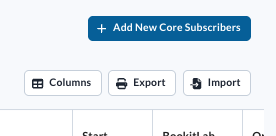
Click Import-button, above the table on the right-hand side. Import page appears.
Click Get The Template-button.
- Edit the file as follows for each column:
- #: blank
- User: [brukernavn]@uio.no (or other institutes, like @uib.no, @ntnu.no, etc.)
- Project: project's name that is to be charged
- Subscription: name of the subscription
- Org Unit: blank
- Start Date: start date in the format of DD/MM/YYYY
- BookitLab End Date: end date in the format of DD/MM/YYYY
- Cost Center: blank
- Cost: price for the subscriber
- Send expiration notification (Days): If you set 7 here, then the user will receive a notification email 7 days before the expiry date.
- SubscriptionAssignmentType: Fill in "SpecificUser".
- Upload the file from the Import-page.
If the total cost exceeds the rest of the project's/user's budget, or the end date is after the project's/user's end date, import fails.
Why does import fail when I use exported Excel file?
If you want to update subscribers or create new subscribers by using import function based on the exported Excel file, follow the steps below:
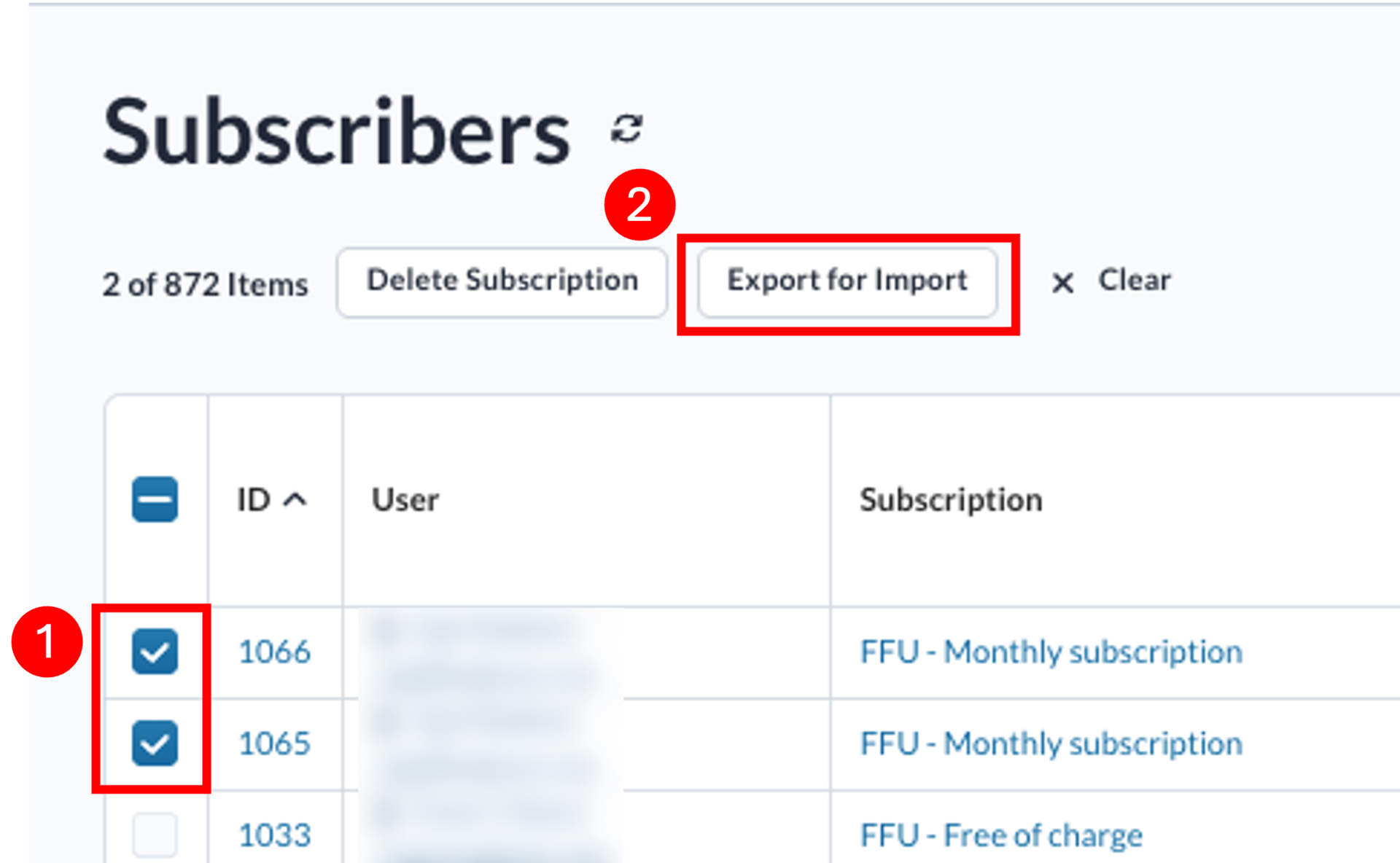
- Select rows of subscribers to update (or that you want to use as a basis). Then two buttons appear; "Delete Subscription" and "Export for Import".
Press "Export for Import", and use the downloaded file for editing. If you want to create new records, remember to delete the IDs (in # column).