By using Cisco Secure Client (formerly Cisco AnyConnect) with UiO's ap-vpn setup, you can access to read e-mail with IMAP outside of UiO's wired network.
The solution works with Apple Mail, Thunderbird and other email clients with IMAP setup.
Installasjon og oppsett
The Cisco Secure Client (with ap-vpn) is only available for managed machines at UiO, and can be downloaded from the Managed Software Center on your Mac.
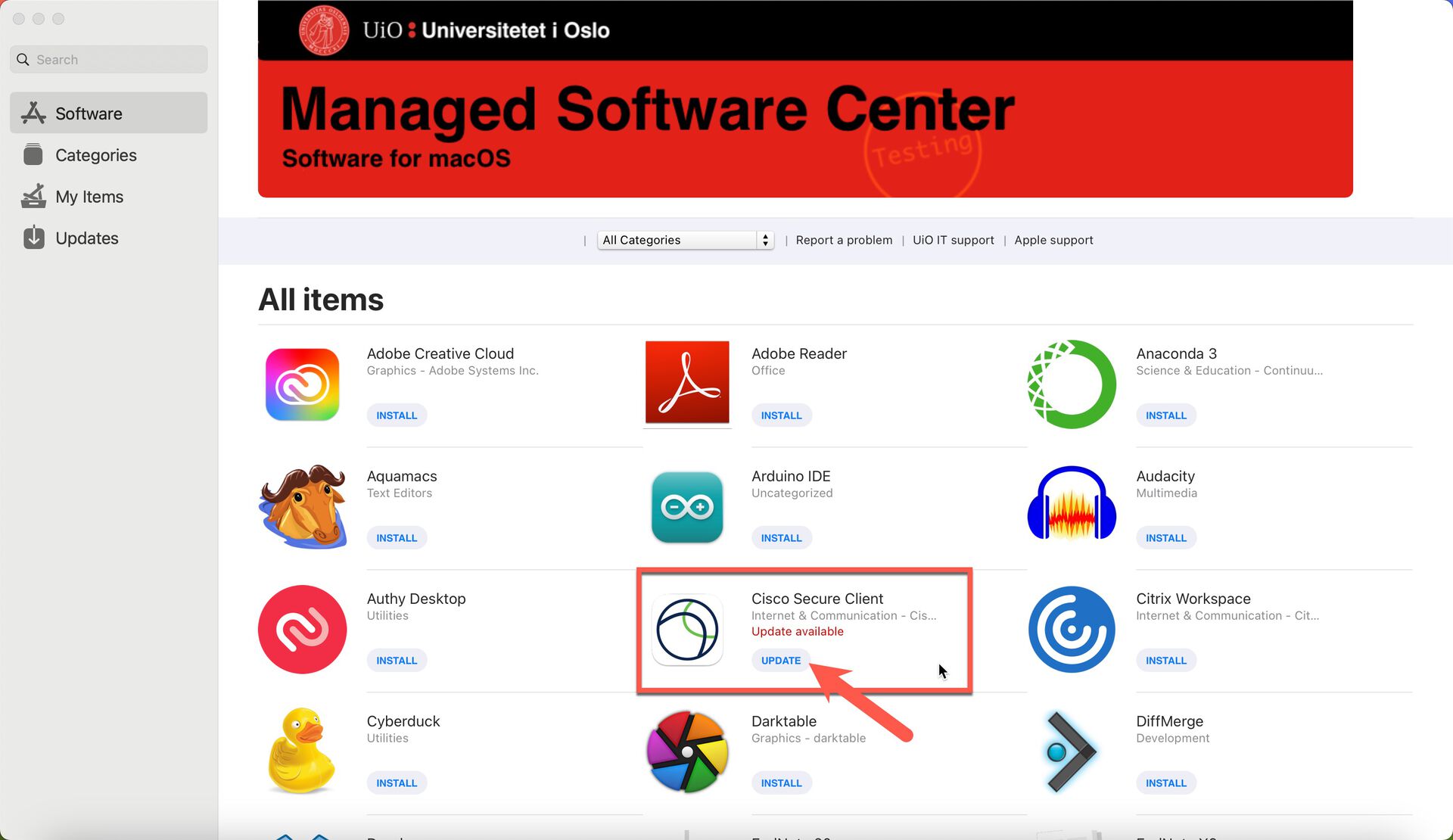
Find Cisco Secure Client and click INSTALL (if you already have the program installed with a normal VPN setup, click UPDATE).
After the Cisco Secure Client is installed, launch the application from the Applications folder. When the program starts, UiO's current configuration for ap-vpn and a machine certificate will be downloaded to your machine. The machine certificate is used as a form of two-factor authentication.
When the configuration and machine certificate have been downloaded, select ap-vpn.uio.no from the configuration menu for VPN setups and click Connect.
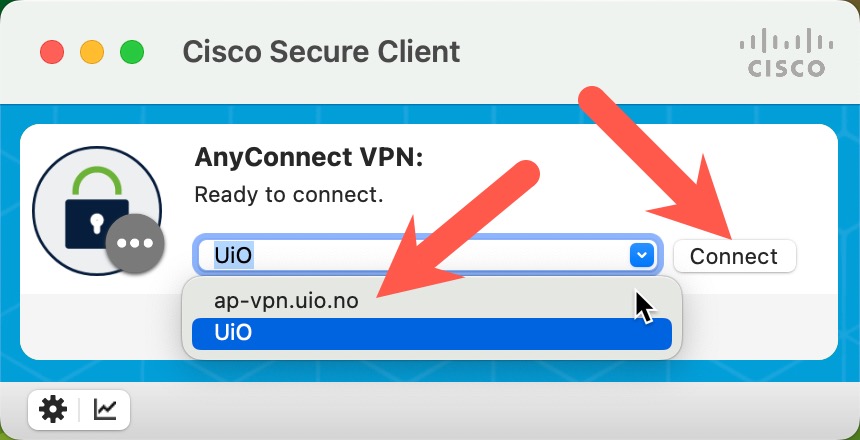
When the VPN connection is established, it says Connected to ap-vpn.uio.no, and you can now start your preferred e-mail client.

Click Disconnect to stop the VPN connection.