PC users:
Access to your own files (PC)
When you are working in the UiO Programkiosk in Omnissa you initially only have access to what is stored in your UiO home area (M:), but you can also set up access to folders you have locally on the machine you are working on (including those you have connected to OneDrive).
- Open Omnissa Horizon Client and connect to the server view.uio.no
- Find Settings in the menu on the left
Go to Drive and Folder Sharing. Here you can choose whether you want to connect to all your files or only individual folders
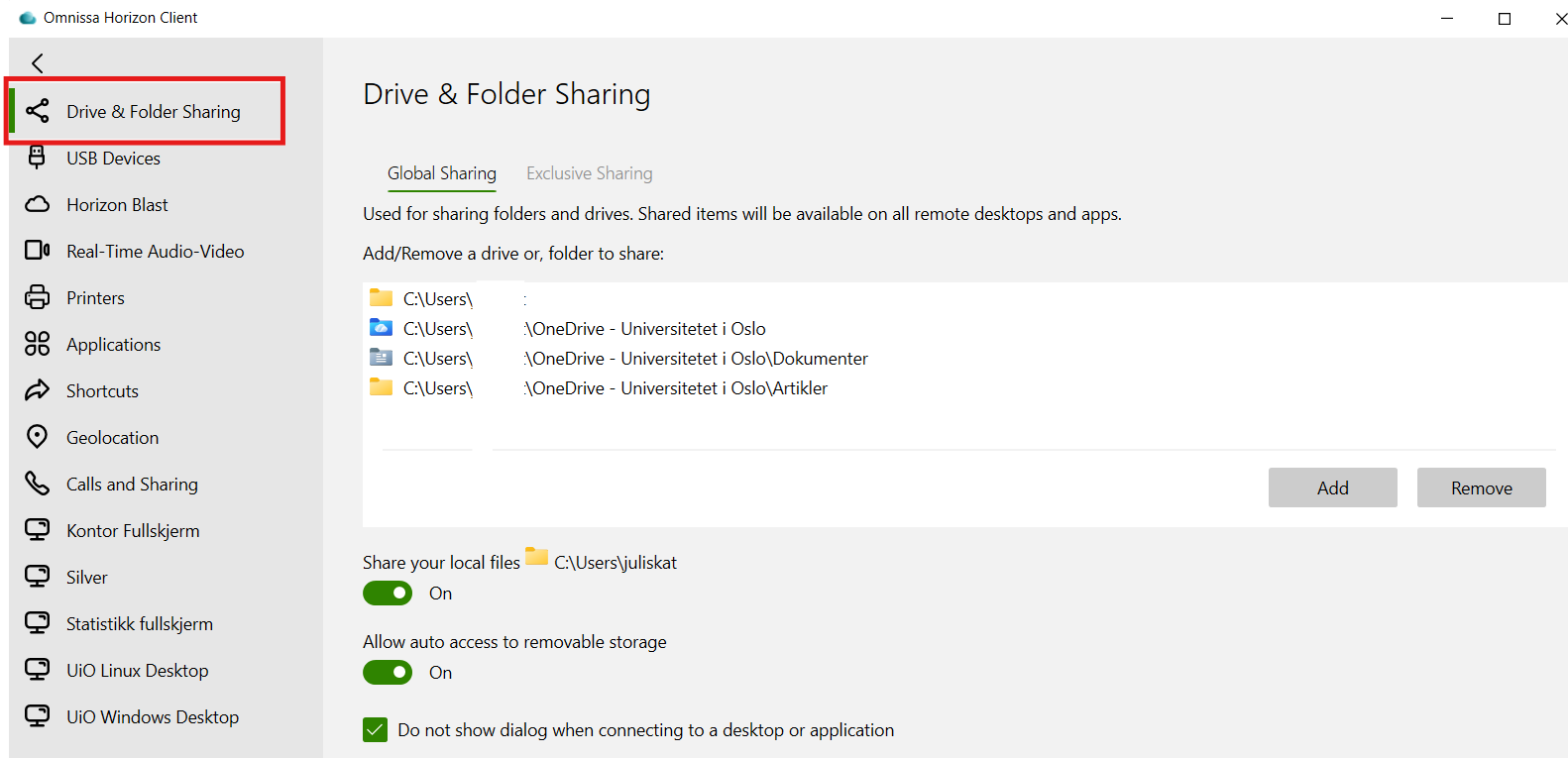
When the folders have been added, you can find the file locations in the applications in the Programkiosk. Note that they are located under My Computer, and not under Documents

If they do not appear right away, you can try restarting Omnissa.
Change settings for automatic reconnection (PC)
If Omnissa automatically reconnects to previous sessions, this may result in error messages that NVivo project files are already in use, or other problems. To avoid this, you can change the settings for automatic reconnection.
- Open Omnissa Horizon Client and connect to the server view.uio.no
- Find Settings in the menu on the left
In the settings under Applications, make sure that Do not ask to reconnect and do not automatically reconnect is selected under Reconnect Behavior

Mac users:
Access to your own files (Mac)
When you are working in the UiO Programkiosk in Omnissa you initially only have access to what is stored in your UiO home area (M:), but you can also set up access to folders you have locally on the machine you are working on (including those you have connected to OneDrive).
- Open Omnissa Horizon Client and connect to the server view.uio.no
In the task bar, click on Omnissa Horizon Client and Settings…

Go to Drive Sharing. Here you can choose whether you want to connect to all your files or individual folders

- Once the folders have been added, you can find the file locations in the applications in the Programkiosk. Note that they are located under My Computer, and not under Documents
If they do not appear right away, you can try restarting Omnissa.
Change settings for automatic reconnection (Mac)
If Omnissa automatically reconnects to previous sessions, this may result in error messages that NVivo project files are already in use, or other problems. To avoid this, you can change the settings for automatic reconnection.
- Open Omnissa Horizon Client and connect to the server view.uio.no
In the task bar, select Connections and click into Settings
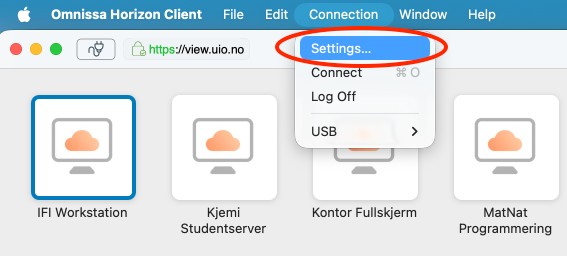
In the settings under Applications, select Do not ask to reconnect and do not automatically reconnect

Are you working in TSD/Educloud?
The settings may not look exactly the same as in the examples above.
Access to NVivo in TSD/Educloud
In TSD, NVivo is available for installation from Software Center. Note, you have to be PI or administrator to install software in TSD from Software Center. If NVivo does not appear in the Software Center in TSD, contact IT support at tsd-drift@usit.uio.no.
If you are going to import video files to NVivo, you will also need to install the codecs package K-Lite Codec Pack from TSD's Software Center.
NVivo and K-Lite Codec Pack are installed in Educloud. If you are unable to locate either, contact IT support at ec-drift@uio.no.
Log out of TSD to avoid sluggishness
When working in TSD, it is important to log out of your TSD virtual desktop regularly to prevent it from becoming sluggish. You need to log off so the machine can update itself and start fresh. Educloud handles this automatically on a weekly basis when it resets the system. Consequently, Educloud may feel faster—but this is only the case if you fail to log out of TSD regularly and thereby ensure the machine stays up to date. See How to log out.
You should also log out from your EC Windows Desktop in Educloud regularly.
To avoid NVivo getting stuck in a previous work session and/or running paralell sessions, which will cause the project file to crash, it is important to end each work session correctly:
- Save and close the NVivo project file
- Close and exit NVivo
- Log out from your remote desktop (TSD/Educloud/UiO Programkiosk)
- Exit Omnissa
TSD users:
Access to your own files (TSD)
TSD does not give you access to your local machine or the open internet, only to a limited number of secure server services.
Use TSD’s Data Portal for importing files: https://data.tsd.usit.no
See the guide.
Recommended working area in TSD
You can copy files from data - durable - file-import to home - pxx (your project), thereby creating a copy of the files only available to you in your own user home area in TSD. In home you can organize files as you wish.
You can also create folders in data - durable and copy files from file-import to work with them there. Here you can also organize files as you wish. Files in data - durable are availabe to all project members.
Use copy-paste instead of drag-and-drop when you move files between areas. If you use drag-and-drop, your files will keep their original access rights.
Do not use TSD’s C: (no backup).

Settings for automatic reconnection (TSD)
Use the setup that has been configured for your project with automatic connection to your project area.

Educloud users:
Access to your own files (Educloud)
Use the Educloud Data Portal for importing and exporting files: https://data.educloud.no
If your computer is certified for red data, you can drag and drop files from your local file area as described under “Other options” (see bottom of page). Useful for this method:
Z: Network Drive gives you access to your local home area (local machine). This connection is set up in Omnissa Settings - Preferences - Drive Sharing.

Recommended working area in Educloud
You can copy files from the project area’s import folder to Documents, thereby creating a copy of the file here in your own user home area in Educloud. Use copy-paste, not drag-and-drop, for the file to inherit the new folder's access restrictions. Do not use Educloud’s C: (deleted weekly). In Documents you can organize files as you wish.
Z: Network Drive gives you access to your local home area (local machine) if your computer is certified for red data and you have set up this connection in Omnissa Settings - Preferences - Drive Sharing (see "Access to your own files" above). This is NOT an EC project work environment, but solely to import files to EC.
See the guide and more help for files in Educloud.

Change settings for automatic reconnection (Educloud)
In Omnissa for Educloud, under Connection - Settings, make sure that it is not checked to reconnect to the desktop in Educloud.

Correctly closing NVivo in Omnissa
To avoid NVivo getting stuck in a previous work session, it is important to end each work session correctly.
Close and log out
- Save and close the project file
- Close and exit NVivo
- In Omnissa for UiO Programkiosk, Educloud, or TSD:
- Log out from the remote machine (Kontor Fullskjerm in UiO Programkiosk, EC Windows Desktop in Educloud, pxx-win in TSD)
- Exit Omnissa