Before the exam
Username and password
For the exam you must log in to Wiseflow with Feide and your UiO username and password.
You can check that your username and password work by logging in to passord.uio.no. Choose English from the top bar and click the "Change password" button. If you are able to log in here you will also be able to log in on the exam day. You can also get help if you forgot your password or username here.
Please note: You will not be given extra time on your exam if you are delayed at login due to changing your password.
Valid identification
You must present identification on the exam day. Remember to bring valid photo ID to the exam (student card, national ID card, passport, driver’s licence or bank card). You can also use the mobile apps “Førerkort” (digital driver’s licence) or “Studentbevis” (student ID app), provided your photo is registered in the app.
Plan your journey
Silurveien 2 is located at Ullern, and most on-campus exams are held there. See how to find your way to Silurveien.
On the exam day you must do the following
Arrive on time and find a seat

It is a good idea to arrive early on the exam day. The doors to the halls open 30 minutes before the exam starts.
Read the directions to Silurveien and check which entrance you should use.
On the information screens on the 3rd and 4th floor you can see which seats your exam is placed at, and on the computer screen you will see the course code and seat number.
Log on to the computer and Wiseflow immediately
Log on to the computer and log in to Wiseflow with FEIDE.
You log in with your UiO username and password.
Two-factor authentication is not required in the exam venues in Silurveien 2.
Contact an exam invigilator if you have any problems logging in.
Change keyboard language on the computer (before the exam starts)
Right-click on the taskbar, select “Taskbar settings” and then “Time & language”. Go to “Language & region” and add the language you want by clicking “Add a language”. The language bar will then appear on the taskbar, and you can select your preffered language there.

Change the language of captions/text in Wiseflow (if needed)
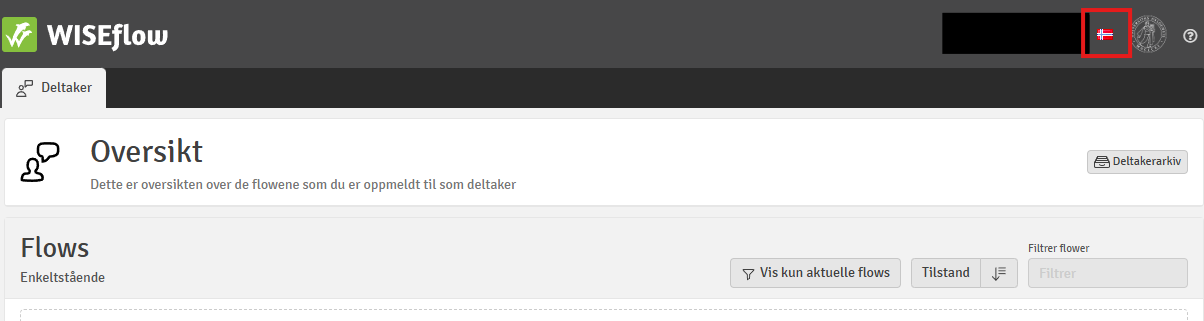
You can change the language in Wiseflow by clicking on the flag at the top right next to your name.
Find your exam
You will find your exam on the Overview page under Flows.

Answer the exam and submit your paper
When the exam time begins, you must enter a participant password to open the exam. The password will be read aloud in the exam room.
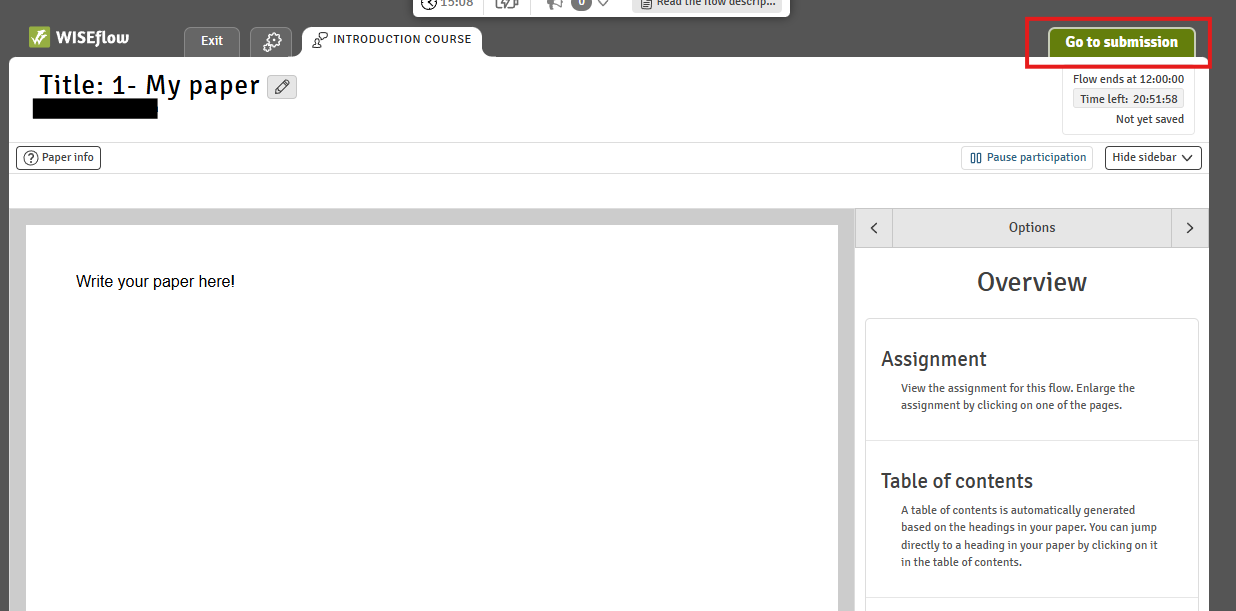
Note that you must go to submission and actively submit your answer when you are finished. You will need to contact an invigilator to deliver submit your exam. Your answer will not be submitted automatically when the exam time runs out.
When you are finished, you must first log out of Wiseflow, and then log out of the computer either by clicking the Windows icon and “Log off”, or by pressing Ctrl + Alt + Delete and selecting “Log off”.