Before the exam day there are several things you need to prepare
Lockdown browser
Before you take a BYOD on-campus exam on your own computer, you must download a secure browser called Lockdown Browser. The browser prevents you from communicating with others or accessing files or other websites during the exam.
Downloading Lockdown Browser
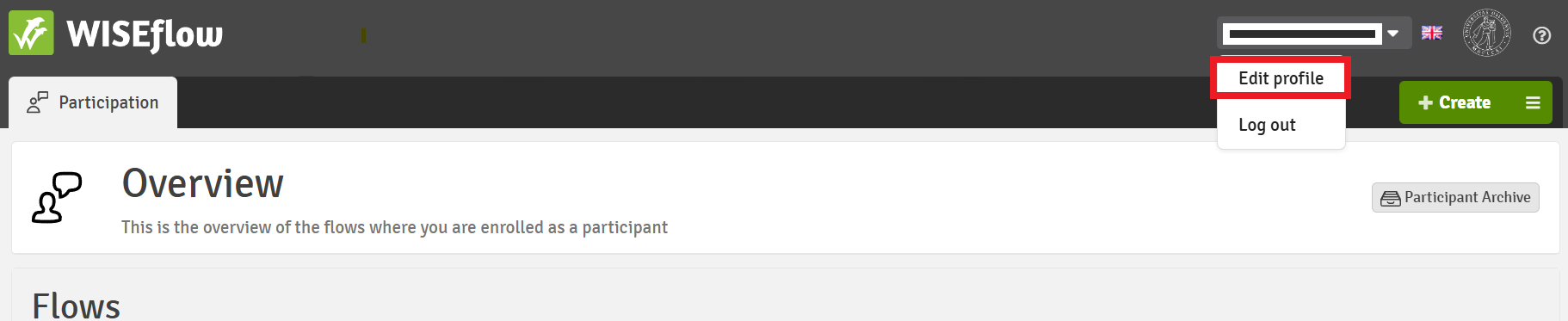
To download the browser, you must first log in to Wiseflow with FEIDE. Once you have logged in, you will find your name at the top right of the screen. Click on your name and select “Edit profile”.
Select system and click “Download”.
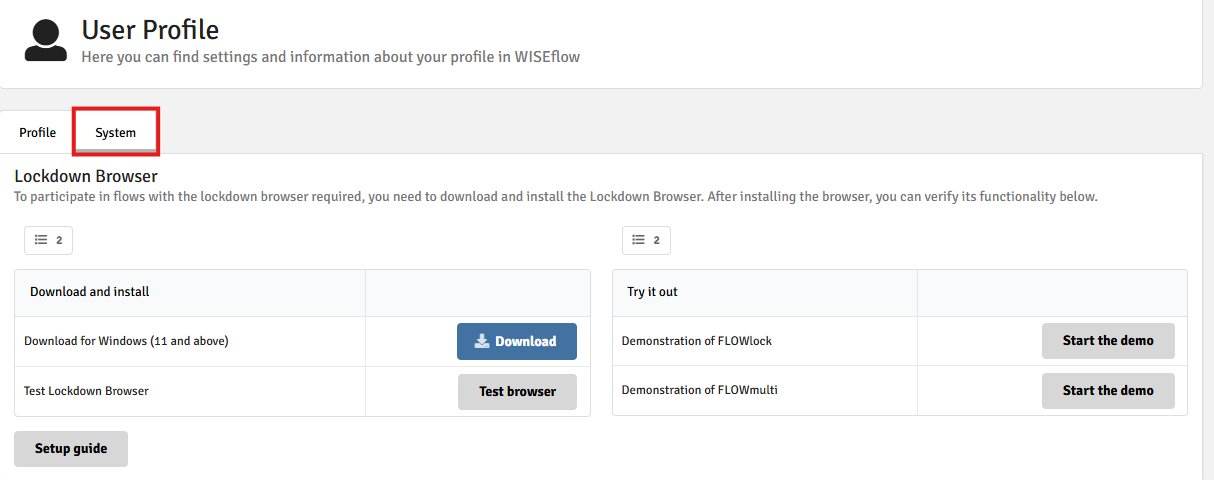
Once you have installed Lockdown Browser on your computer, we recommend that you take a demo flow as shown to the right in the picture above that requires Lockdown Browser to be installed. If you are able to access the content in the demo flow, it will also work for your BYOD exam.
Requirements for your computer
The minimum requirements for operating system, browser and computer can be found on Wiseflow’s help pages. If you do not have a suitable computer, you can apply to borrow a computer from UiO. Remember to apply no later than 3 working days before the exam!
Two-Factor Authentication (2FA)
When you take a "Bring your own device" exam, your login to Wiseflow has to be confirmed with 2FA. This is the same as for home exams or when you log in to other services at UiO. Remember to bring your mobile phone to the exam room so that you can complete the authentication.
You can read more about two-factor authentication on our webpages.