GitHub and Devilry guide for IN5590
This is a guide on how to use GitHub and Devilry in assignments and projects in IN5590.
Most assignments in the course use GitHub/Devilry for deliverables. Exceptions are clearly specified in the assignment text. The typical exeptions are demos and presentations.
How to use template repos
Each assignment has it’s own repo named
in5590_assignment<number>. They are all publicly
available when loging in using your UiO-credentials in the IN5590-team.
Step by step:
- Head to the the IN5590-team and go to the specific assignment you will be working on.
- Select Use this template button on top right:
- Set your user as owner.
- Set the name of the repo as
in5590_assignment<number>just like the template. - Set the visability as
public.
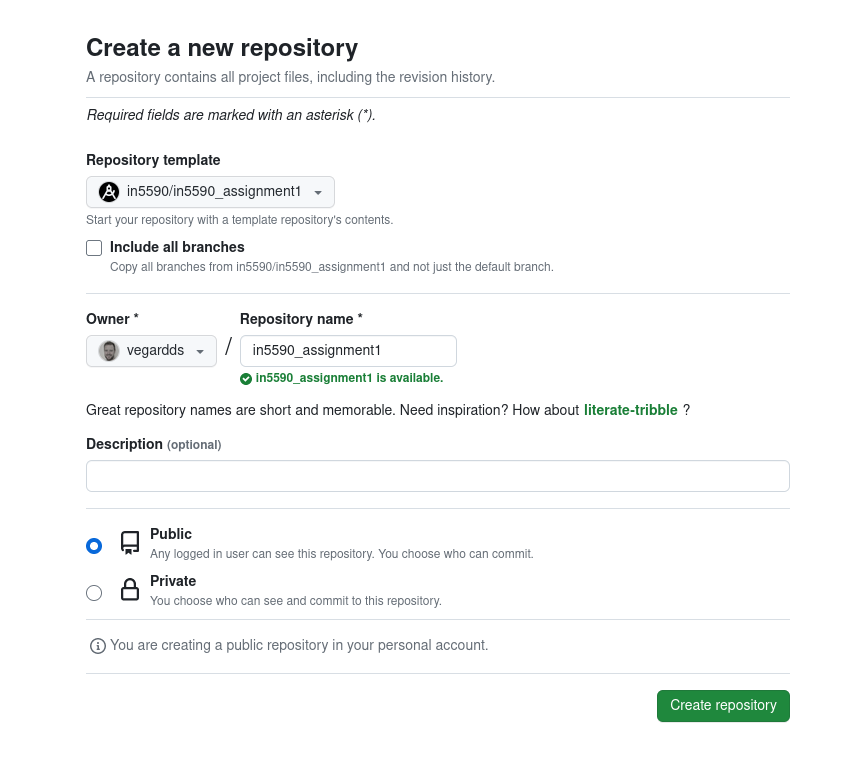
- Select the Create repository button:
- The final submission should be uploaded as a ZIP of the project in
Devilry.
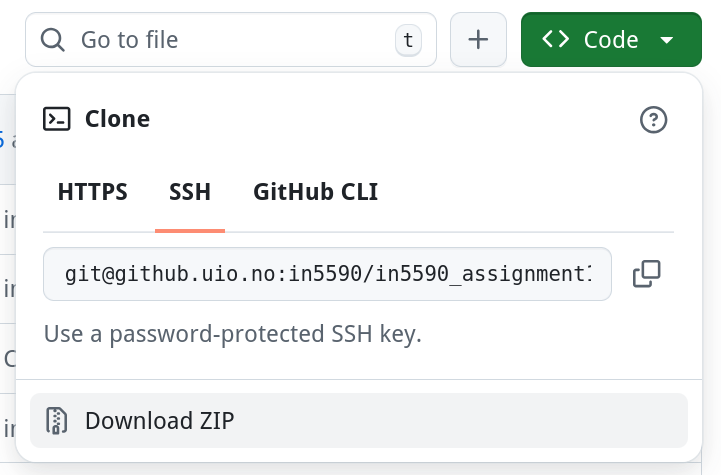
- Go to the GitHub repos main page.
- Press the Code button.
- Press Download ZIP button.
- Upload the ZIP to Devilry.
IMPORTANT: Be really thourugh about point 3 to 5. If this is incorrect, the assignment will not be counted as passed.
Additional information
The assignments will be pulled exactly at the deadline enlisted in assignment overview. The only
branch that will be reviewed, is the main branch.
Parts of the your assignments will be published on the course web page under the portefolio tab.