Checklist before connecting
Note: Before you can use Nettskjema with Educloud, you must have access to Nettskjema, which is not included in the Educloud base package. This means that you do not automatically have access to Nettskjema, even if you are a member of an Educloud project.
The criteria for a form to be connected to Educloud are:
- You must have an Educloud user account and be a member of the project to which you will connect the form.
The form must be set up as the form type TSD- or Educloud form.
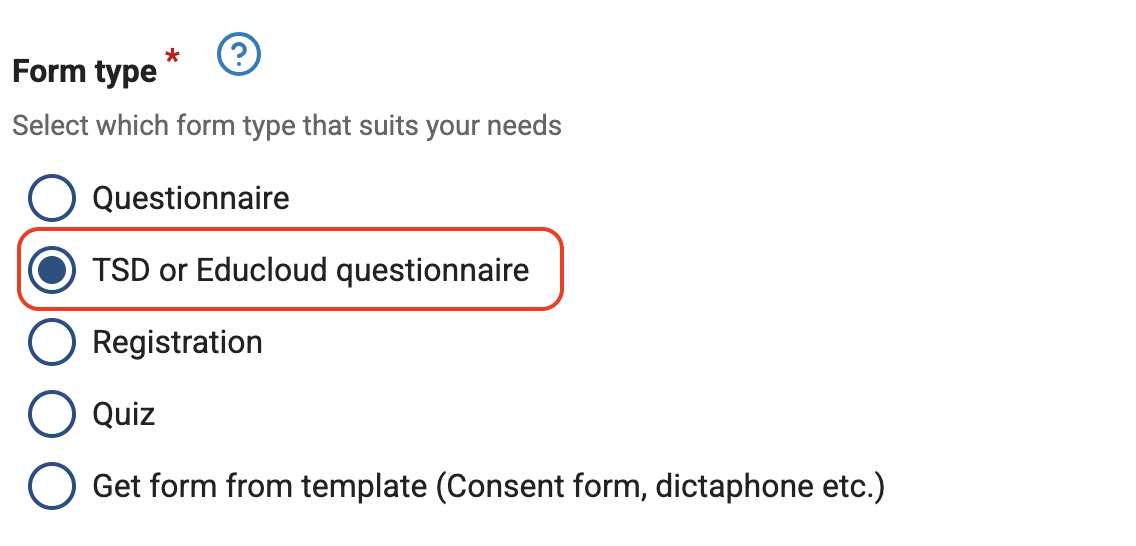
- If you did not choose this type when creating the form, it is possible to change Form type to TSD- or Educloud form under Settings. This can be changed as long as the form has not received responses, or all responses have been deleted.
- The form must be complete and fully tested.
- Once the form is connected to Educloud, you can no longer edit it. If it is absolutely necessary, the form can still be opened for small adjustments that will not lead to deterioration of data quality.
- The codebook must be completely filled out (no empty fields). Read more about the codebook here.
- Test responses that have been submitted to the form before activation must be deleted. This can be done under the View results tab.
How to connect a form to Educloud
Go to the form you want to connect to Educloud at nettskjema.no. In the red banner under the title of the form, click Connect.

- Review the checklist before connecting, and complete any missing items.
- When the form is completely finished, check Yes, I am finished building the form.
- Choose who will be able to respond to the form.
- Here, choose what suits your study. See options for response permissions on this page.
- Note that if the form is to be set up as electronic consent, you should choose Signing with ID-porten level 3/4.
- Select Connect the form to Educloud and click Log in with Educloud.
- Enter your Educloud username, password and one-time code (OTP) and click Connect.
- Confirm connection to the Educloud project by clicking Connect.
When the form is connected to Educloud, a green banner will be displayed under the form title.
Process data in Educloud
If the form is connected to an Educloud project, you can only view the data through Educloud. The easiest way to access the responses is through the Nettskjema portal in Educloud.
- Log in to Educloud
- Open a web browser, for example Firefox.
- Go to the page nettskjema.educloud.no.
Click Show forms.
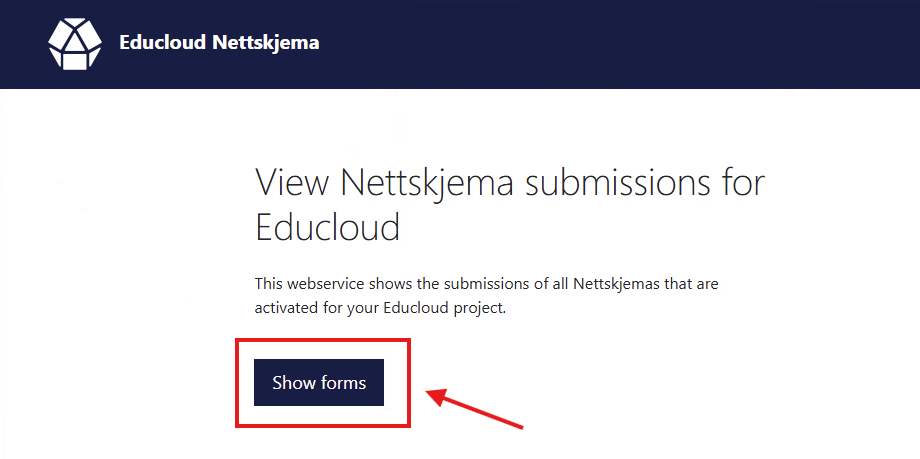
- Log in with username, password and one-time code (OTP).
- Select the project for which you wish to view forms.
All forms connected to the project will be displayed.
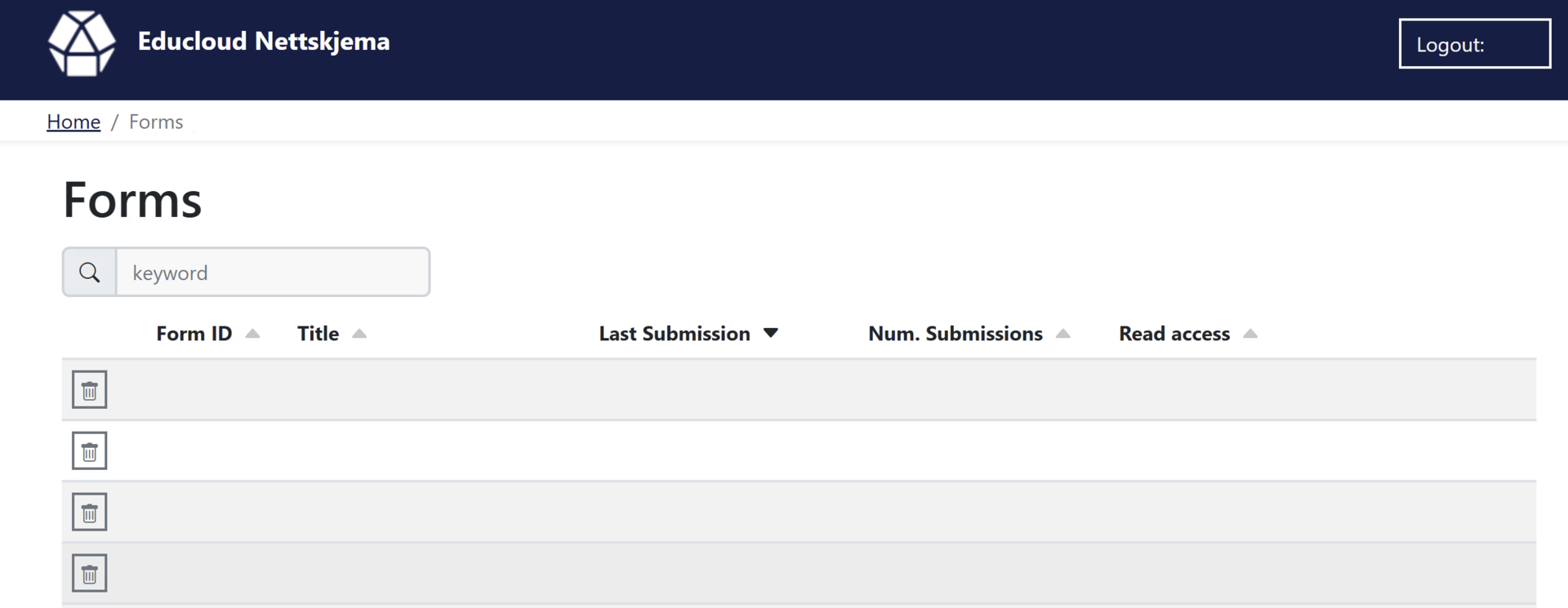
After logging in, you can
- download collected data
- view responses that have been submitted to your form
- delete responses or entire forms if needed
Call us
Opening hours are weekdays from 08:30 to 17:00 and Saturdays from 10:00 to 15:00.
Phone number: 22 84 00 04
Book a Zoom meeting
Students and employees can book a Zoom meeting with UiO Helpdesk. Available hours are Tuesday to Thursday between 11:00 and 13:00.
Book a video call