Important: This guide assumes that your forms are already configured with forwarding and reference ID so that you can link data across the forms.
Linking responses across forms
To link responses across forms, you must find which response ID (submission ID) from the first form (A) corresponds to the Reference ID in the form to which responses are forwarded (B). One Excel file is generated per form, and these must then be linked together manually.

How to find the Excel file for the relevant form
- Click My forms
- Click Mine
- Select the form for which you want to download the Excel file.
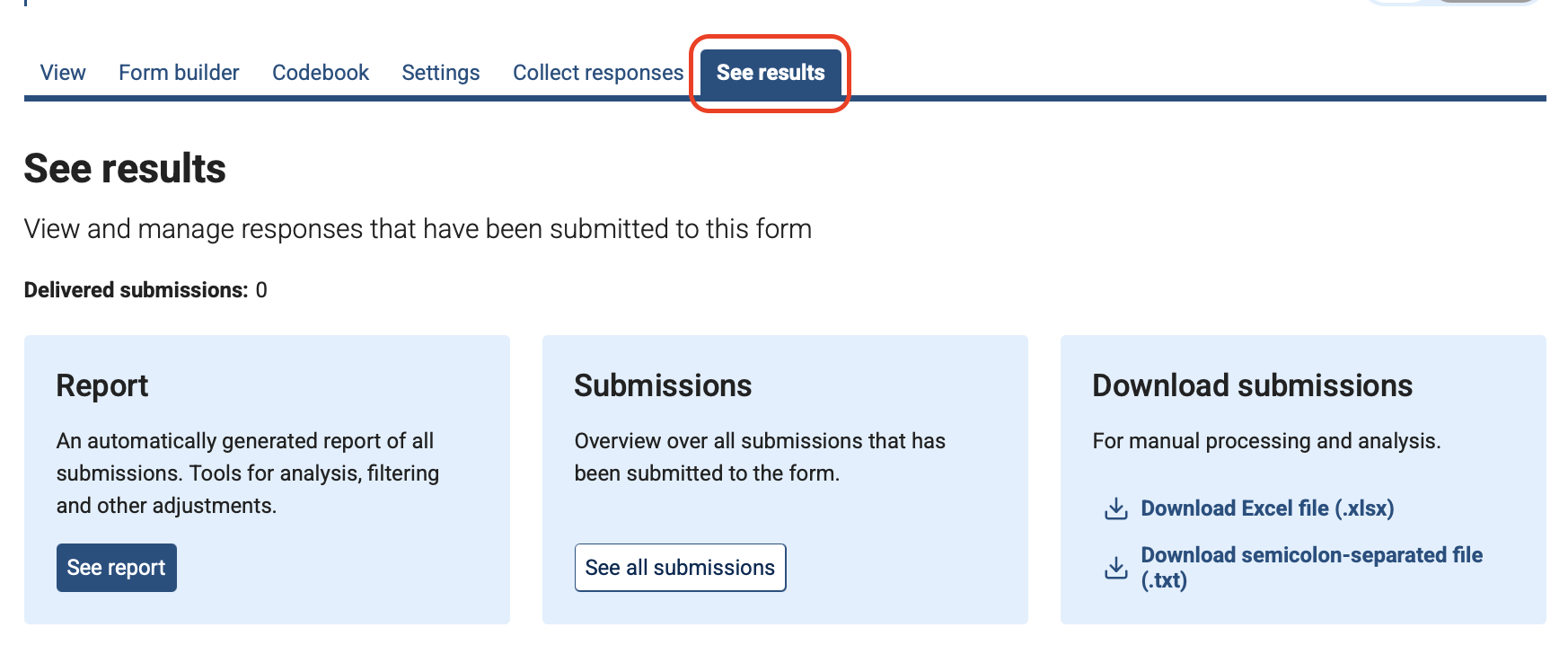
Click See results
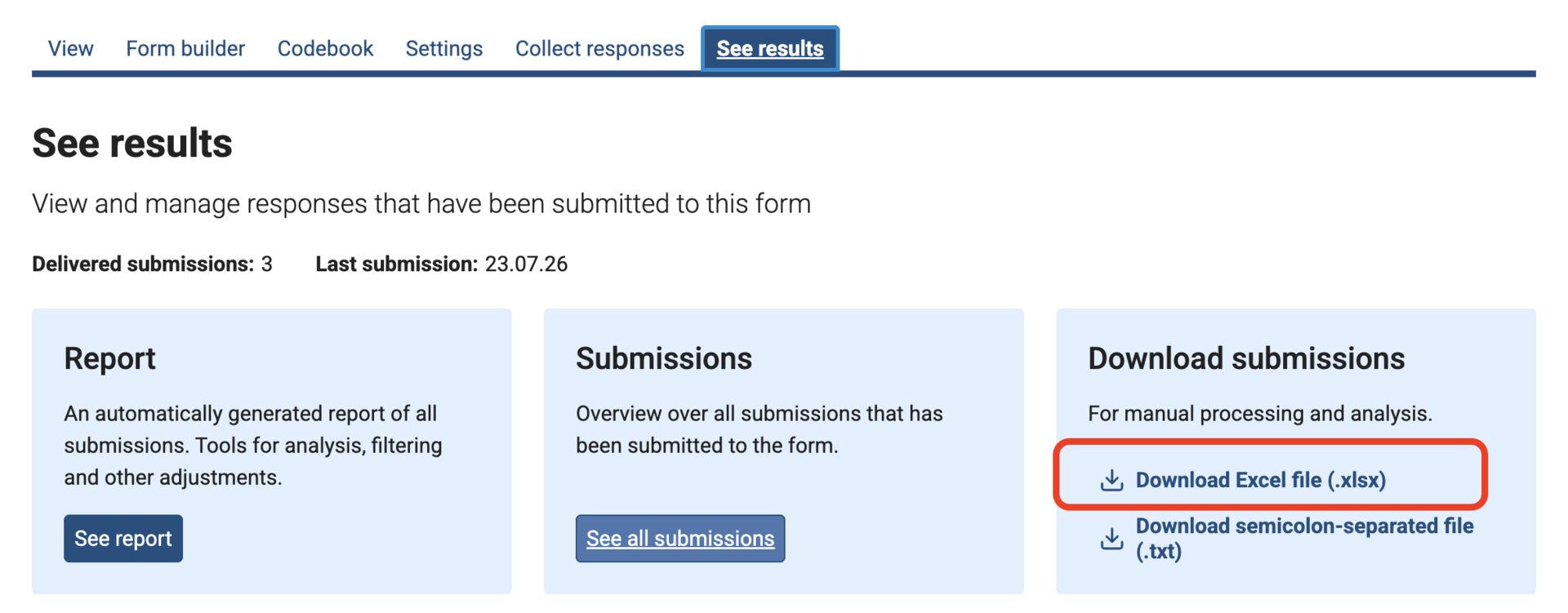
Select Download Excel file (.xlsx)
How to link data across multiple de-identified or anonymous Nettskjema forms in Excel
The data can be linked together in Excel using the columns submission_id and Reference ID.
Here is an example of what the data may look like in different forms and how the responses from one user are connected.
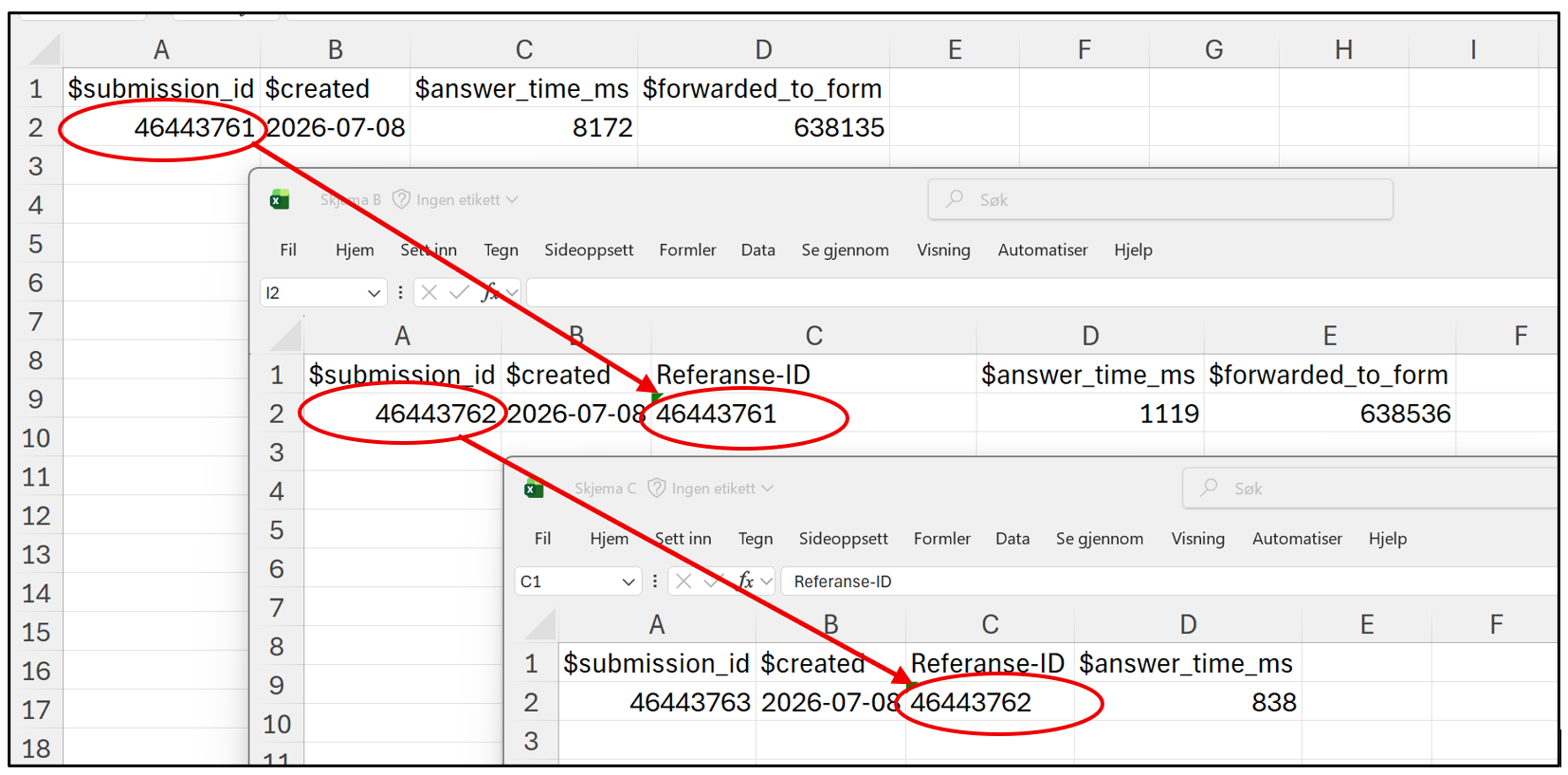
It may be a good idea to rename the columns submission_id and Reference ID to something you recognise for each form, so that it is easier to keep track of the data.
A general description of how you can link data in Excel from multiple files is shown in this video:
Ring oss
Vi har åpent mellom 08:30 og 17:00 på hverdager,
og mellom 10:00 og 15:00 på lørdager.
Telefonnummer: 22 84 00 04
Send inn sak til oss
Du kan sende inn din forespørsel via e-post til: it-hjelp@uio.no.
Gå til e-postBook et videomøte over Zoom
Er du student eller ansatt kan du avtale veiledningstime hos UiO Helpdesk over Zoom. Tilgjengelige tider er tirsdag til torsdag mellom 11:00 og 13:00.
Book et videomøte