General
Collecting video data with Viso requires that a project has been registered in Services for Sensitive Data (TSD) or Educloud Research for secure storage and further processing.
Getting started
Step 1: Download the app
iOS (iPhone and iPad): App Store
Android (phones, tablets): Google Play
If you already have the app installed, make sure it is updated to the latest version on your phone.
Step 2: Create a Nettskjema form for Nettskjema-Viso
- Log in to nettskjema.no and select Create form.
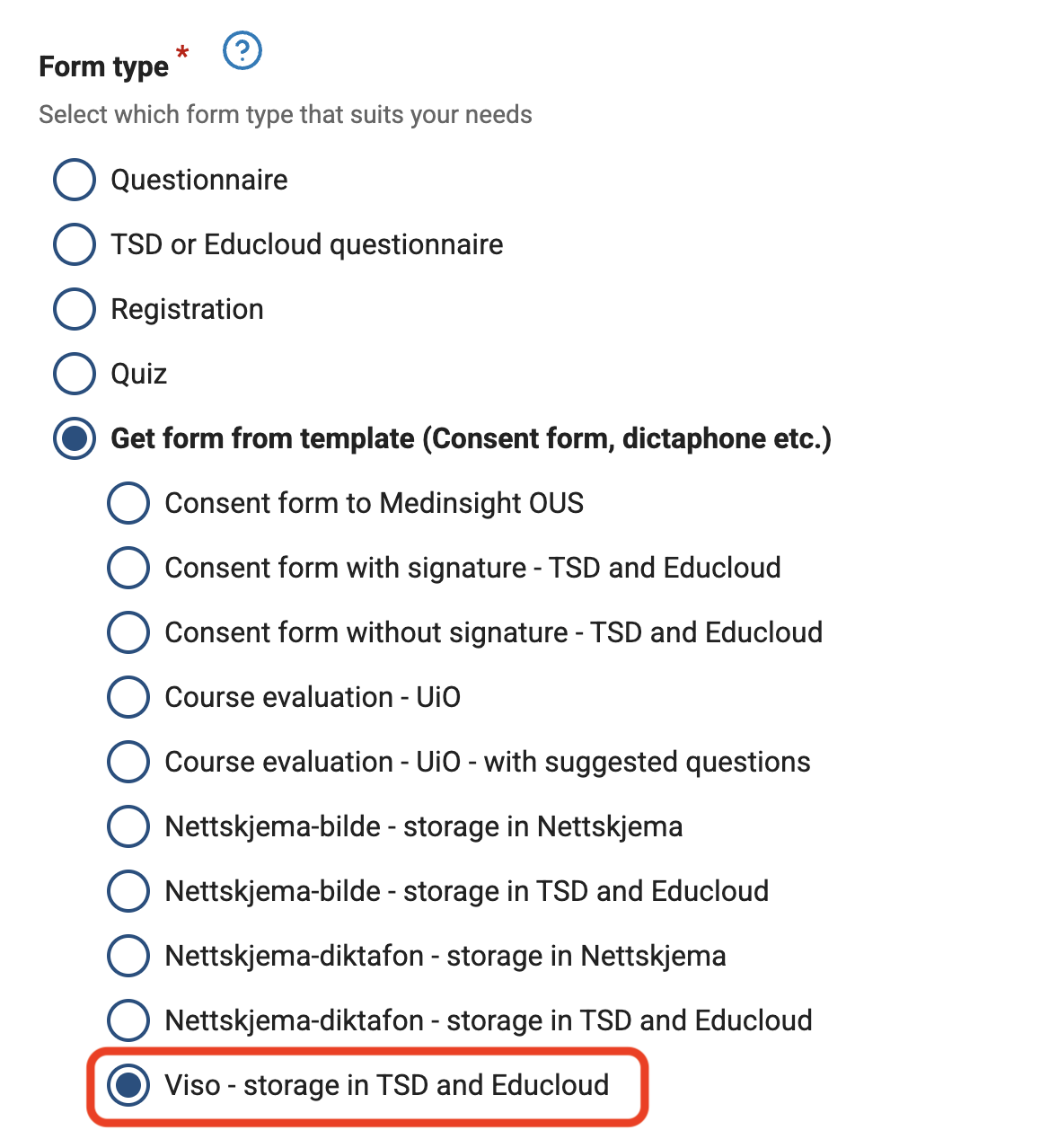
Choose form type Get form from template (Consent form, dictaphone etc.) and select Viso – storage in TSD and Educloud.
For the question “Who should be able to answer the form?”, you must choose Everyone – without login.
- The form is now created with all necessary fields and codebook values. Make sure that the questions and codebook values are not changed.
Connect the form to TSD/Educloud by clicking Connect and following the instructions on the screen.

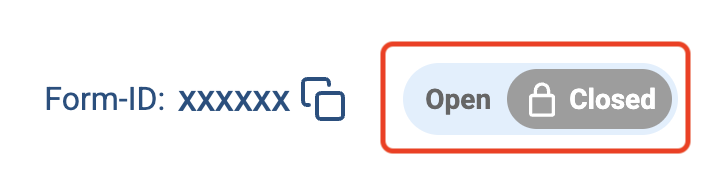
Open the form for responses.
Step 3: Connect the Viso app to the form
- Open the Viso app on your mobile phone.
When the app starts, you will be asked for the form ID (skjema-ID). Connect the app to the form by entering the 6‑digit number.
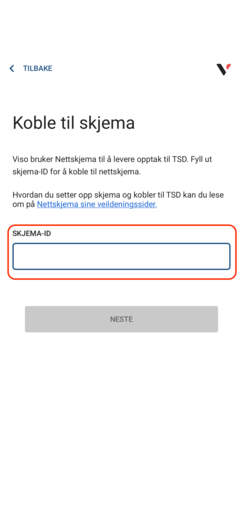
You will find the form ID in the form.

You will also find it in the form’s URL and it corresponds to the last 6 digits in the form URL: https://nettskjema.no/a/XXXXXX
Step 4: Make the recording
Internet connection
Make sure you have a stable internet connection. For the recording to be delivered to TSD/Educloud, it is important that the internet connection works optimally.
If you are not connected to the internet, the recording will be stored temporarily on the device until it can be uploaded and delivered.
Avoid interruptions and ensure good recording quality
We recommend setting the phone to flight mode to avoid the recording being stopped if the phone rings.
To achieve the best possible audio and video quality, you should ensure that there are no distracting elements that can affect the recording quality (e.g. background noise).
It is a good idea to check that the microphone and camera work optimally by making a test recording.
Recording length
The maximum recording length is 100 minutes in standard quality and 42 minutes in high resolution. If the recording exceeds the time limit, the recording will be stopped and you will receive a notification that the maximum file size has been reached.
If you want to make a longer recording, you will need to start a new recording.
Step 5: Submit the recording
When the recording is finished, you can add a name for the recording and a comment before submitting it.
The recording will be locked and stored temporarily on the device until the internet connection is stable enough for upload via Wi‑Fi or 4G/5G.
Step 6: Process the recording
Note: For security reasons, it is not possible to play back the recordings on the mobile device.
The recordings are transferred automatically to secure storage in TSD or Educloud, and must not be downloaded to private devices. To play back the recordings, log in to your project in TSD or Educloud.
See how to process data from Nettskjema in TSD.
See how to process data from Nettskjema in Educloud.
Special considerations when collecting data with video recordings
Video recordings may capture information not only about the main participant, but also about other people who happen to be in the area, even though they are not intended to be part of the study. You should therefore, as far as possible, limit the presence of people you do not plan to collect data about.
Video material is often very information‑rich, and it is crucial to plan the recording location, camera angle and framing carefully. Be aware of who may become visible in the recording, for example passers‑by or people in the background. The surroundings may also contain information that makes the material more sensitive than necessary, such as personal belongings or other identifying details.
As a general rule, you should avoid filming in environments that provide unnecessary additional information, and carry out the recordings as planned and controlled as possible. In addition, participants should be instructed to act in a way that does not make other people identifiable in the recording, unless such processing has been specifically assessed and approved.
Call us
Opening hours are weekdays from 08:30 to 17:00 and Saturdays from 10:00 to 15:00.
Phone number: 22 84 00 04
Book a Zoom meeting
Students and employees can book a Zoom meeting with UiO Helpdesk. Available hours are Tuesday to Thursday between 11:00 and 13:00.
Book a video call