General
To use the app, you must have access to Nettskjema. Anyone who has access to Nettskjema can use the Nettskjema Dictaphone.
The Nettskjema Dictaphone is considered more secure than ordinary dictaphones, as we guarantee that audio recordings cannot end up unencrypted in the wrong place. See Risk and vulnerability analysis of the mobile app Nettskjema Dictaphone.
Getting started
There are two ways to use the dictaphone app:
1. You, as the editor of the Nettskjema form, make the recordings yourself with your own phone and submit them to the form. Steps 1–6 are relevant for you.
2. The respondents of the form have installed the app on their own phone and make audio recordings themselves, which they submit to your form. Respondents must complete steps 1, 3 and 4. The editor must complete steps 2, 5 and 6.
Step 1: Download the app
iOS (iPhone and iPad): App Store
Android (phones, tablets): Google Play
If you already have the app installed, make sure that it is updated to the latest version on your phone.
Step 2: Create a Nettskjema form for Nettskjema Dictaphone
Note: Make sure the form is set up correctly before it is put into use. The form should not be changed after it has been put into use, as this may cause follow-on errors for subsequent recordings.
- Log in to nettskjema.no and select Create form.
Select Get form from template (Consent form, dictaphone etc.)
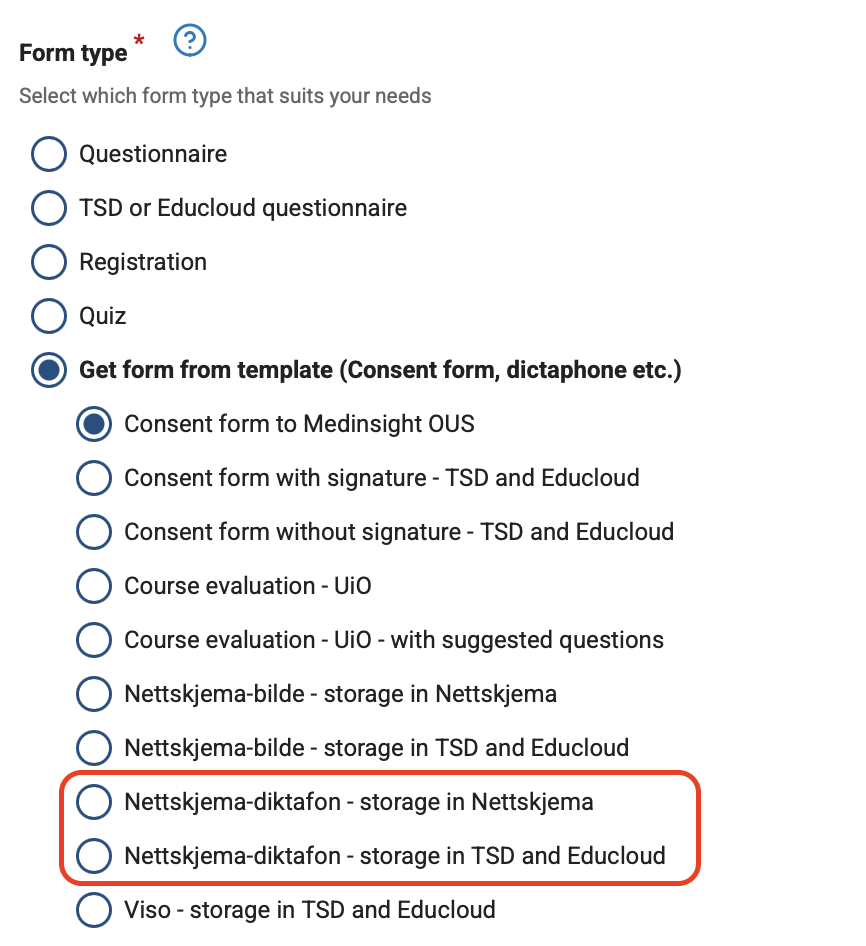
Select Nettskjema Dictaphone – storage in Nettskjema if the recordings are to be stored directly in Nettskjema.
Select Nettskjema Dictaphone – storage in TSD and Educloud if you are recording sensitive information and storing it in a TSD or Educloud project.
Open the form for responses.
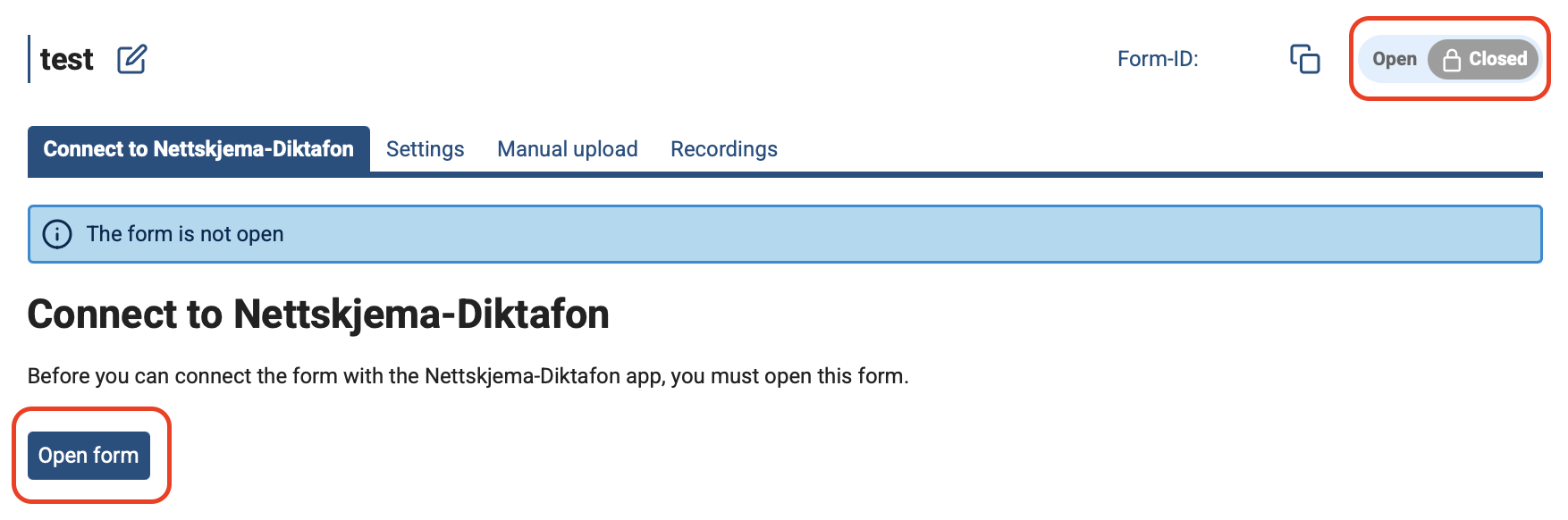
Step 3: Connect the dictaphone app to the Nettskjema form
- Open the dictaphone app on your phone.
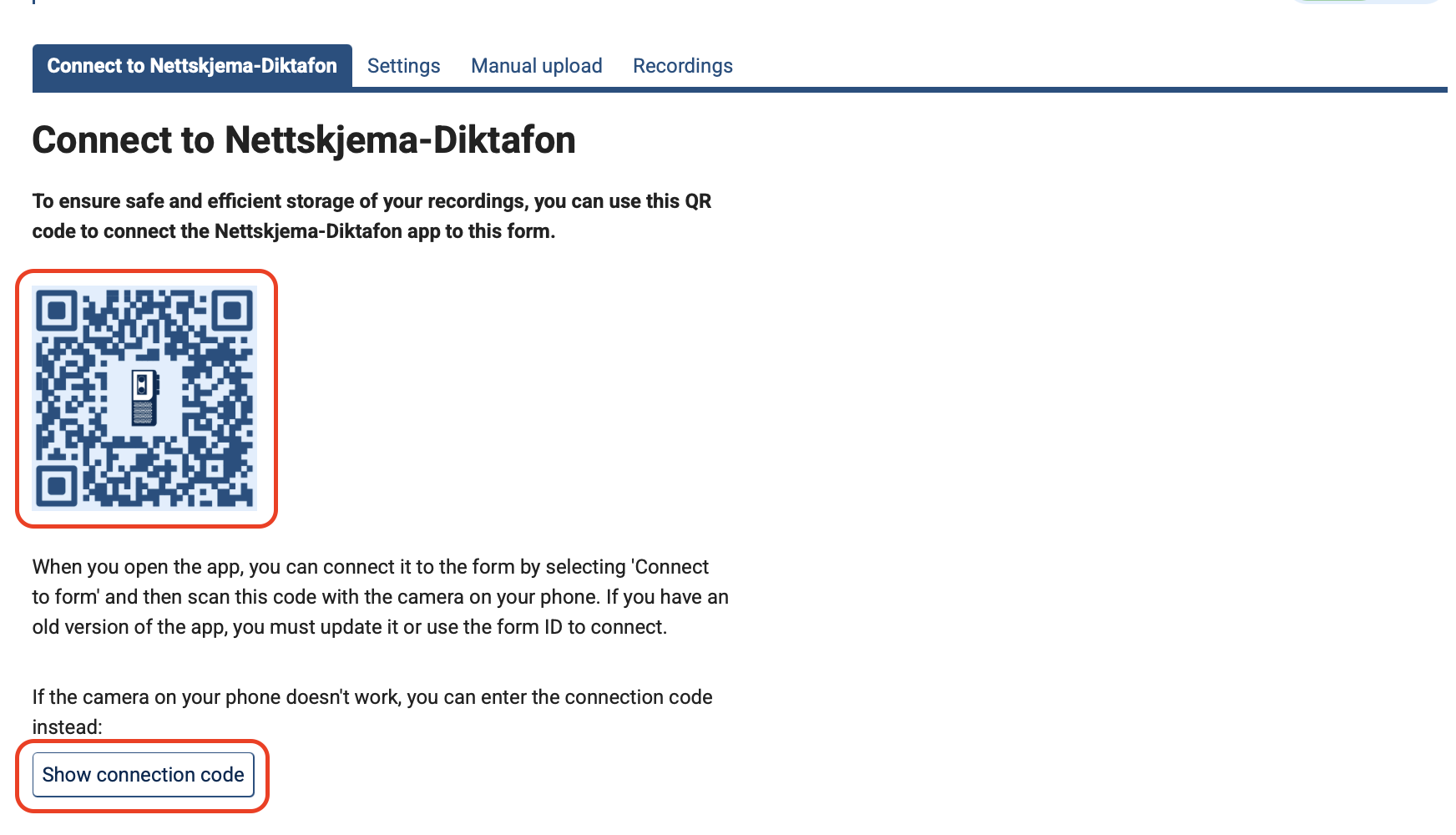
Select Connect to form and scan the QR code found on the created form using your phone’s camera.
If the camera on your phone does not work, you can instead enter a connection code. You will find the code further down on the form.
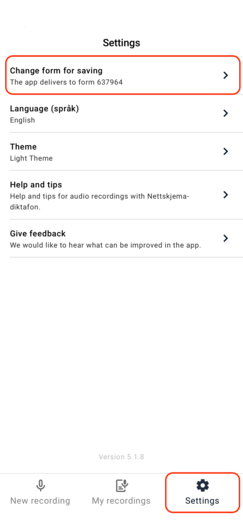
If you do not see the option Connect to form in the dictaphone app, go to Settings in the app and then Change form for storage to scan the QR code from there.
Step 4: Make the recording
Note: Check that you have sufficient storage capacity on your phone.
- Start the dictaphone app.
Go to New recording. Tap Start audio recording to begin recording.
Note: Do not turn off the screen during the recording, and we recommend enabling flight mode, as incoming calls will interrupt the recording.
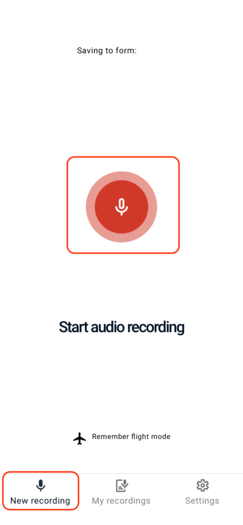
When you are finished, stop the recording. Add any comments in the field and then tap Save the recording.
The recording is encrypted immediately on the phone.
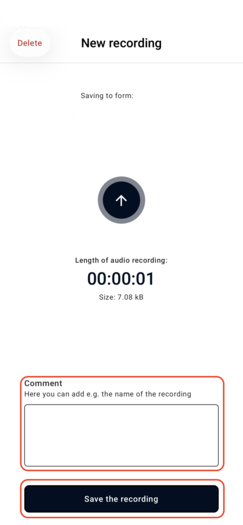
Check that the recording is delivered to Nettskjema immediately after the recording is completed.
All previously delivered audio recordings remain encrypted on the phone for 90 days. If you accidentally delete data in Nettskjema or experience problems during upload, you can upload the files again.
Note: For security and technical reasons, it is not possible to restore recordings if something goes wrong on the phone and the audio file is not delivered to Nettskjema.
Step 5: Process the recording
Note: For security reasons you cannot play back recordings in the app.
Storage in Nettskjema
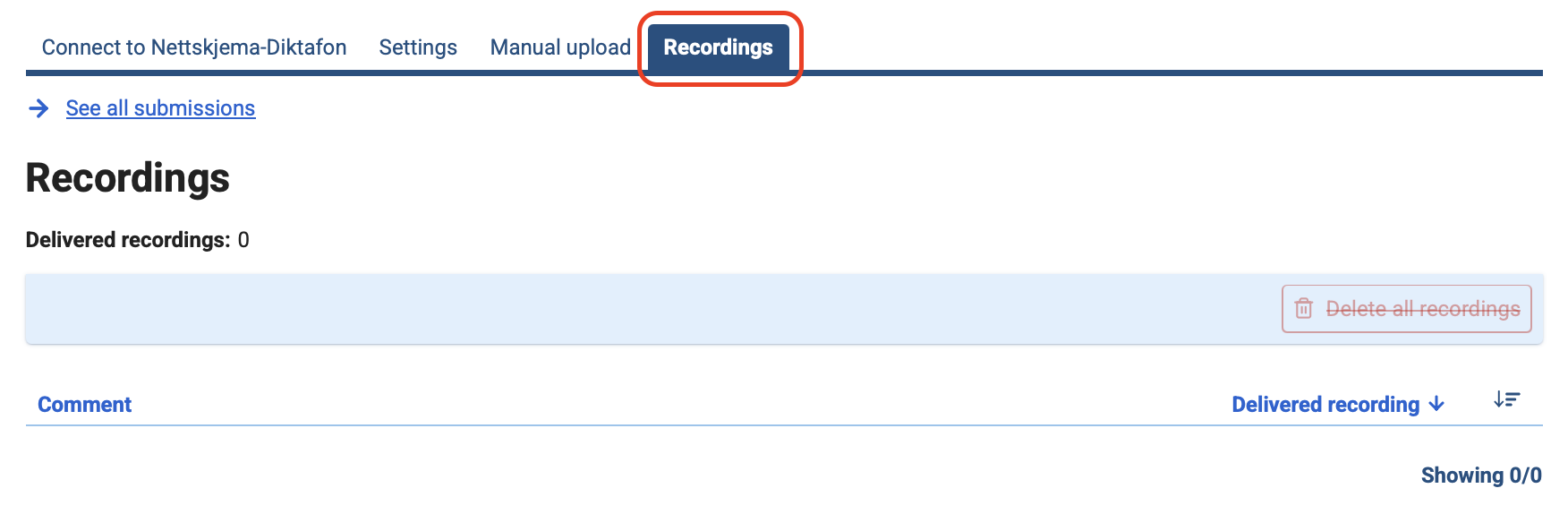
The recording should be available under the Recordings tab in Nettskjema if the form is configured with storage directly in Nettskjema.
For playback directly in the browser via Nettskjema, we recommend Chrome or Firefox. Not all browsers handle audio files equally well. Safari, for example, may cause issues when playing audio files.
Storage in TSD/Educloud
If you have enabled storage in TSD or Educloud, recordings can only be played back within that service. These recordings are not stored in Nettskjema.
Research projects registered in TSD can be connected to Nettskjema Dictaphone so that audio files are delivered directly to the project's storage area in TSD as Nettskjema attachments. To play the audio file (.mp4), you must first locate the folder where the app delivers audio files, or download the audio files from the internal Nettskjema portal. See how to process data from Nettskjema in TSD.
Step 6: Transcribe the recording
Storage in Nettskjema
Audio recordings delivered to Nettskjema are automatically transcribed using the internal UiO service Autotekst. Transcriptions are available under Recordings as text and VTT files shortly after the recording is delivered to Nettskjema.
The settings for spoken language are configured to be detected from the audio recording. You can transcribe the recording again and specify the language for best results.
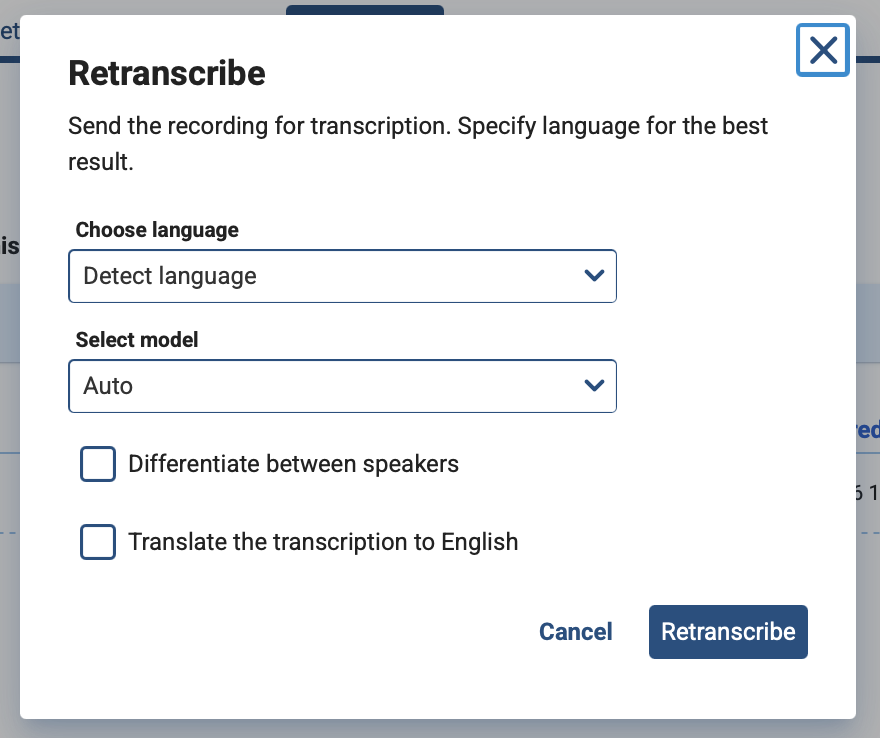
No data leaves UiO’s infrastructure during transcription.
Storage in TSD/Educloud
It is possible to transcribe recordings from Nettskjema responses in TSD Autotekst. TSD Autotekst is a tool for secure transcription of audio and video files and is approved for handling up to black data.
How to transcribe dictaphone recordings from Nettskjema in TSD.
Limitations of automatic transcription
Transcription is machine-based and will never be completely error-free. Quality is affected by language, dialect and pronunciation, background noise and audio quality, several people speaking at the same time, as well as technical terminology, proper names and rare words.
Common types of errors
- Words are misunderstood or replaced with similar-sounding words.
- Missing punctuation or incorrect placement of periods/commas.
- Incorrect division of sentences.
- Incorrect spelling of names, technical terms and abbreviations.
What you should do
- Record audio in a quiet environment.
- Use a good microphone and place it close to the person speaking.
- Avoid several people speaking at the same time.
- Speak clearly and with a steady volume.
- Avoid long pauses.
- Split long recordings into shorter segments if possible.
- Speak in the desired language during the first 30 seconds of the audio recording. This can help ensure that the correct spoken language is chosen.
Remember that automatic transcription is an aid, not a final document. You are responsible for reviewing and quality-assuring the transcription and ensuring that any text used further is correct. Go through the transcription manually and correct it. Make sure that no personal data has been misinterpreted in a problematic way.
Good to know
- The maximum length of a recording is 90 minutes. For longer recordings, you must deliver the first recording and then start a new one.
- The screen must remain on during the entire recording. This means that you cannot close the app, let it run in the background or turn off the screen while recording audio.
- Turn on flight mode to avoid noise from phone calls or messages during the recording. Any other use of the microphone and speaker on the device during recording will end the recording.
- The dictaphone app cannot be used to record phone calls, Zoom calls or similar activities on the same device. Nettskjema Dictaphone can, however, be used together with Zoom when you conduct interviews. You can have Nettskjema Dictaphone on a separate phone placed next to the computer while the interview is carried out in Zoom.
- If you delete the app, all stored recordings will be removed from the device, but recordings that have been delivered will still be available in Nettskjema or TSD/Educloud.
Audio recordings are red data
Based on UiO’s data classification, audio recordings in Nettskjema Dictaphone are defined as confidential data, i.e. red data. The background for this includes the fact that you never know what will be said during an audio recording.
When you collect audio recordings with Nettskjema Dictaphone, you are responsible for doing so in a lawful manner, with the correct consents, and for deleting data when you no longer have a legal basis for storing it.
Recording and delivery
When you make recordings, you must have a system for recognizing what the different recordings contain. You can enter this as a comment just before the recording is delivered, and the comment will then be stored together with the audio recording in Nettskjema.
Listening to recordings
Red data must not be downloaded to a private PC or phone. It is therefore important that you listen to your audio files without downloading them.
After analysis
When you have finished analyzing the data, you must delete the recordings. If you do not delete the data, Nettskjema will delete it automatically during the next scheduled cleanup of personal data.
If you have a legal basis to download and store the data, you can go to individual responses and download individual files.
Special considerations when collecting research data through audio recordings
Voice recordings may capture information not only about the main participant, but also about other individuals mentioned in the conversation, even if they are not participating in the study themselves. You should therefore, as far as possible, limit the collection of information about individuals you do not plan to include as participants.
Conversations can quickly become more sensitive than expected, for example if participants start sharing detailed, identifiable information about third parties. It is therefore important to prepare and structure interviews and other audio recordings as thoroughly as possible, and to be aware of what types of questions and topics may trigger such information.
Participants should be instructed in advance to avoid mentioning identifiable third parties unless such processing has been specifically assessed, described in the project and approved in the necessary privacy assessments.
Experiencing problems?
The recording does not play
If a recording delivered from the dictaphone cannot be played, this may be because the recording has become corrupted. This typically occurs if the app is closed or the phone turns off while recording is in progress on iOS. In such cases, it may be possible to repair the files.
Storage in Nettskjema
If a corrupted recording has been delivered to Nettskjema and can be found on nettskjema.no, you can request help to repair the file in RT. The repaired file can be delivered to the same form to have the recording transcribed as well.
Storage in TSD
If a corrupted recording has been delivered to TSD or Educloud, the file can be repaired using software available at view.tsd.usit.no or view.educloud.no, in a Windows VM. In TSD, Untrunc can be downloaded from Software Center; in Educloud, Untrunc is available directly in the virtual machine.
Provide feedback on Nettskjema Dictaphone
We are continually developing Nettskjema Dictaphone and would like to hear what you think. Provide feedback on Nettskjema Dictaphone.
Call us
Opening hours are weekdays from 08:30 to 17:00 and Saturdays from 10:00 to 15:00.
Phone number: 22 84 00 04
Book a Zoom meeting
Students and employees can book a Zoom meeting with UiO Helpdesk. Available hours are Tuesday to Thursday between 11:00 and 13:00.
Book a video call